In this document, we will explain the integration process between FocusPoint and HubSpot. This
document is only suitable for people with sufficient knowledge of using HubSpot. Otherwise, please inspect HubSpot documents first. Before starting integration, please ensure the related integration is installed on your environment (if it is not installed, please contact us).
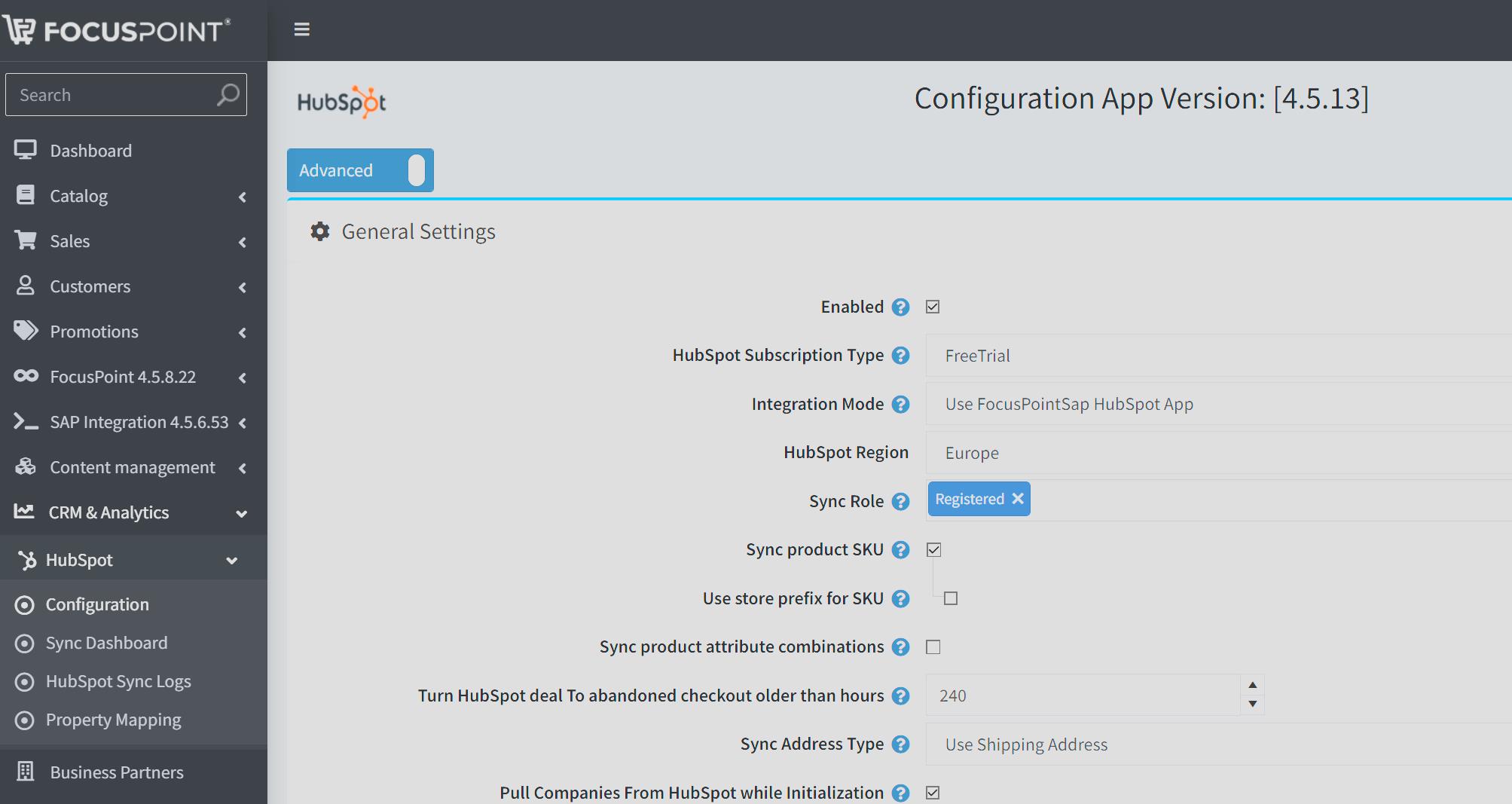
When HubSpot is installed you will see HubSpot on your navigation menu, once selected you will be brought to this screen:
HubSpot Subscription Options:
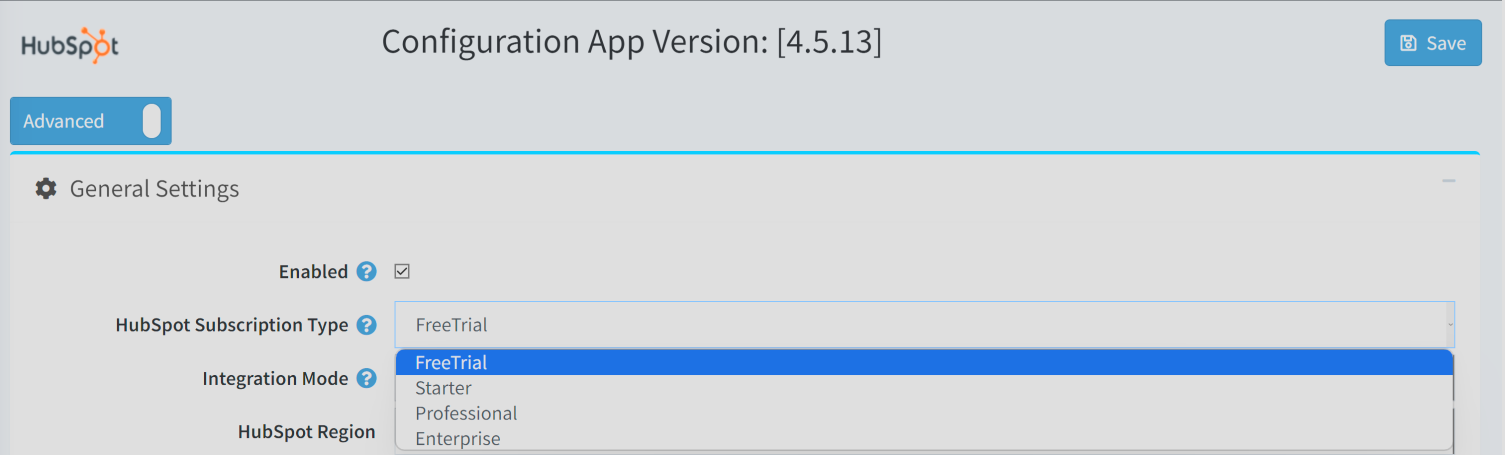
HubSpot have four type of subscription options;
• Free Trial
• Starter
• Professional
• Enterprise
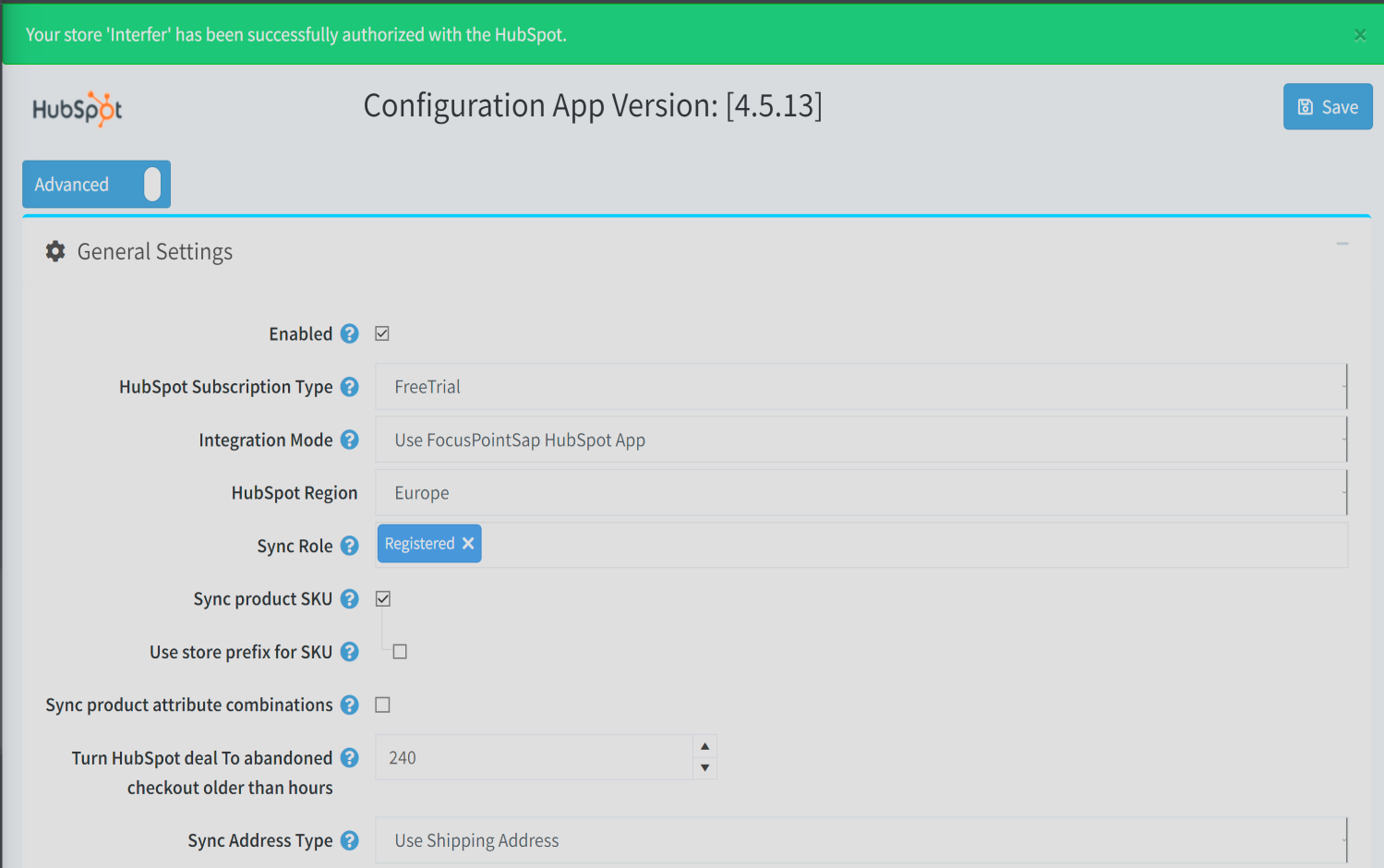
To view the differences between these models, please visit hubspot.com. The most important aspect from FocusPoint is that if your subscription is not Professional or Enterprise, you can not send product records to HubSpot. On the integration panel you will be prompted to enter your Subscription Type:
HubSpot App Integration Mode Options
There are two type of integration modes available:
• Pre-Registered and Approved FocusPoint App By HubSpot (Recommended)
• Client’s own private App
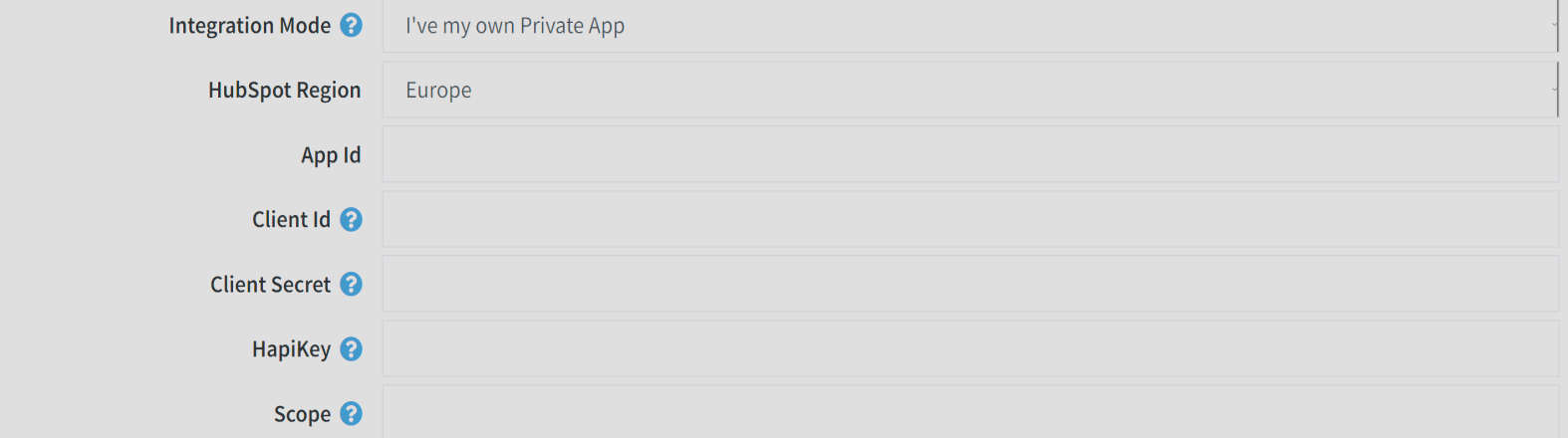
There are API access structure changes between these 2 models. Using “Recommended” FocusPoint’s Integration App allows you not to provide any API Key, Secrets, Scopes etc. For private app on HubSpot whole information on our integration panel will be required.

If you select “I’ve my own Private App” you can see these fields on same screen. All fields are required. Please insure the correct region for HubSpot access Europe and other countries has been selected.
Customer Role Options:
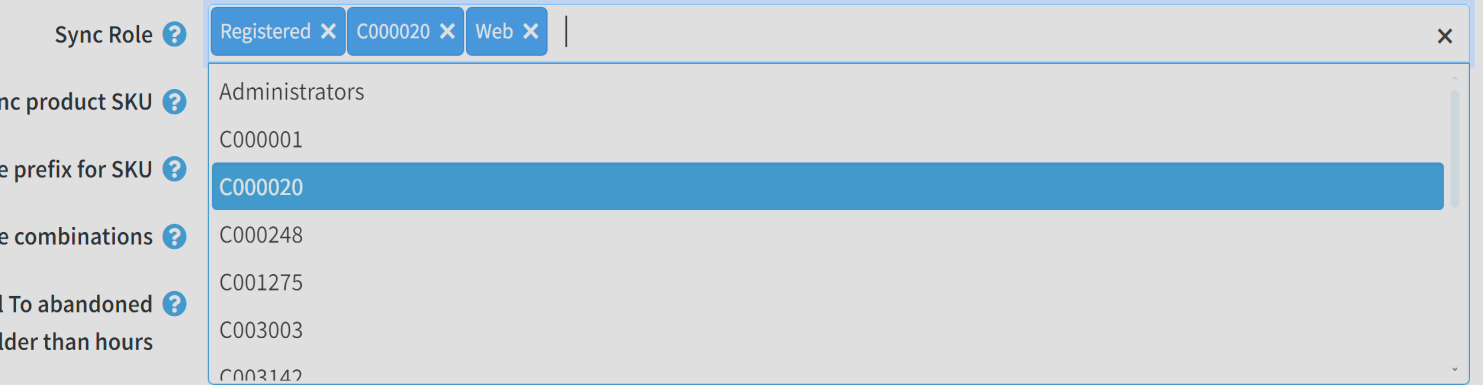
The Roles come from SAP per customer. There is a role option as and in some cases you don’t want to sync some roles to HubSpot. If you want to whole Registered customer’s to HubSpot, this is also possible.
We have some system defined roles with client defined roles. System defined roles;
• Guest
• Registered
• Admins
• Vendors
Other roles are client defined roles like your BusinessPartner roles etc. In this section just select the related roles which you want to send to HubSpot via this integration.
Item Sync Options:
We’ve a few options while synchronization items to HubSpot.
• Sync Product SKU - Use when you want to send item SKU’s to HubSpot
• Use Store Prefix for SKU - Use when you have multiple stores and want to mark the related
items with a store name prefix
• Sync Product Attribute Combinations - Use when you want to send item combinations to
HubSpot. Like Color: Red, Size: XL etc.

Abandoned Checkout Options:
In HubSpot there is a section on Deals called “Abandoned Deals” for marketing purposes. We handled this logic with a timer. If the shopping cart not completed in the given hours, we will mark this deal as “Abandoned” on HubSpot.

Address Sync Options:
We have two options for customer address sync flow. You can choose Billing Addresses or Shipping Addresses as your Customer’s default Contact Addresses. Also, please consider, these addresses are not only web based but also your SAP based address will be stored on HubSpot for related Contacts. That means when you create a new address on FocusPoint or SAP the address will be sent to HubSpot.
Choose eligible option which is fit on your marketing flow:

Dealing With Current HubSpot Data:
If you already using HubSpot before FocusPoint, we have a few options for dealing existing data on
HubSpot called “Pull Companies” and “Pull Contacts” from HubSpot. This is important because otherwise FocusPoint does not know which data is on HubSpot or not. If you already have some data on HubSpot please use this feature as a recommendation. Another option is “Ignore Existing Deal Sync While Initialization” this feature useful when you don’t want to send existing orders to HubSpot while setup.
This action never affects your SAP database or FocusPoint databases. It’s just for updating your
HubSpot records with a unique identifier. Because we don’t want to create duplicated records on HubSpot. If the e-mail exits for a Contact or Company just use existing record.
Important: These options are only available while in first setup. If you have already synced some data to HubSpot, you never use this option again without FocusPoint manual attempt. So please consider this at the beginning of the integration. Otherwise, extra hours will be chargeable.
Deal Status Mapping Options:
The Deal mean is “Orders” and “Shopping Carts” from our perspective. You have six options on HubSpot called Deal Stages, here is the HubSpot Deal Stages list;
1. Checkout Pending
2. Checkout Completed
3. Checkout Processed
4. Checkout Shipped
5. Checkout Canceled
6. Checkout Abandoned
For each stage we have three options for matching status in this integration;
1. Order Status
2. Order Shipment Status
3. Order Payment Status
You will see the related option in our integration panel like this;
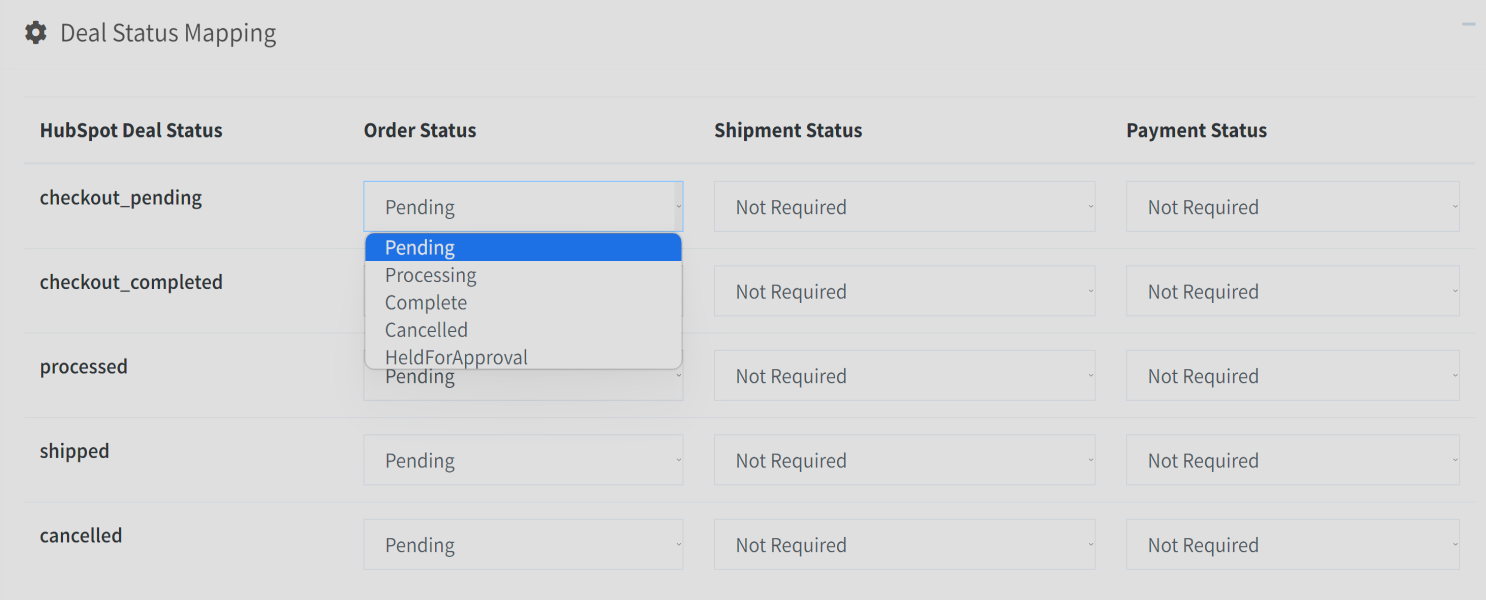
“Abandoned” option is not there because it works only with shopping cart not orders. Pick relevant options which fits your business flow.
Starting Integration:
The integration depends on your Integration Mode selection. If you select “Use FocusPoint HubSpot App” click “Authorize” button, then you will be redirected to HubSpot website to give permissions to FocusPoint. If you select “I’ve my own private apps” please make sure information provided is valid and correct and then you will also be redirected to HubSpot and come back to your Admin panel automatically.

When you clicked this button, you have to see this screen and then just select your HubSpot Account in this page.
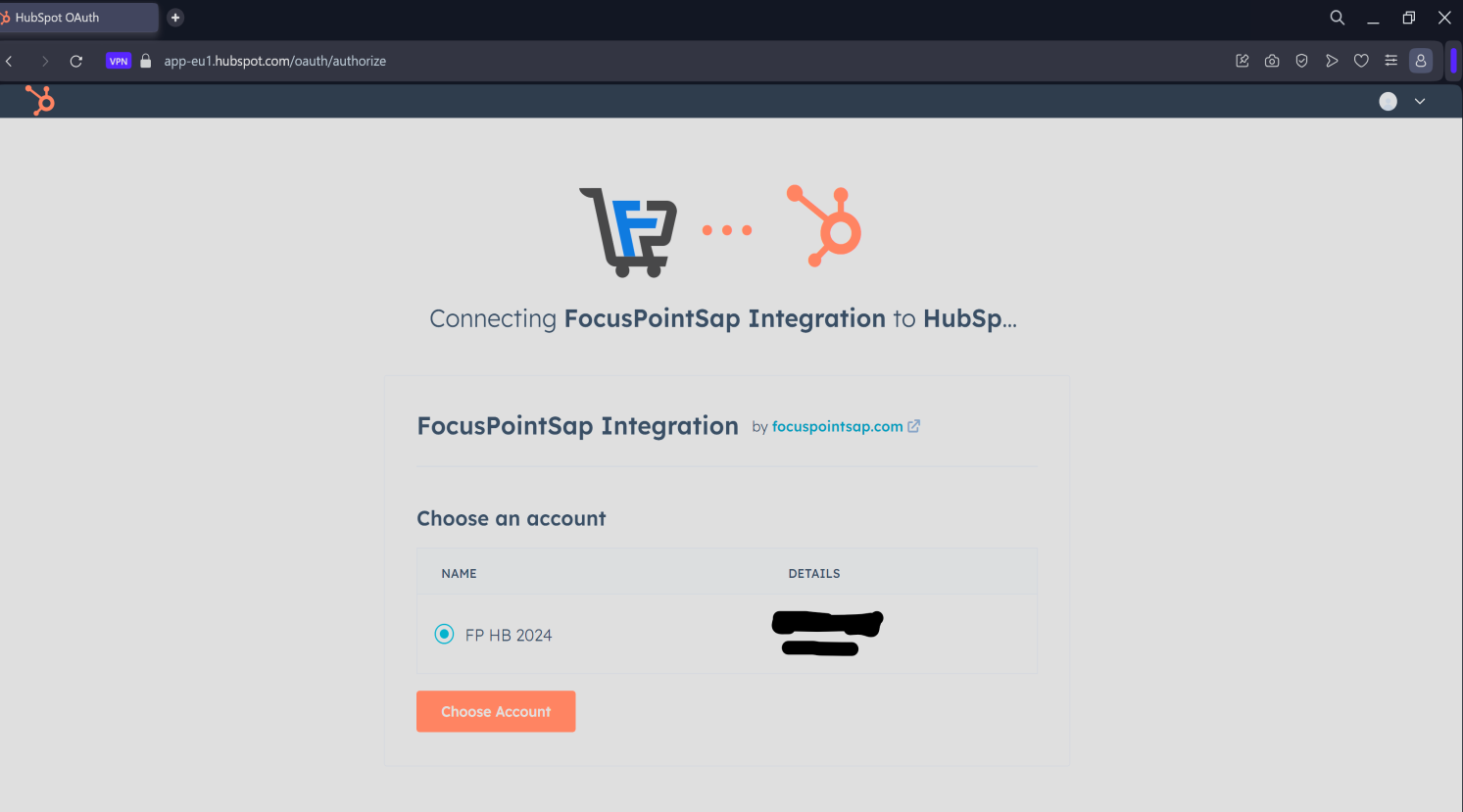
After your approval you will be sent back to your store with this message inside the green bar. That means your Integration has begun and FocusPoint can send data to HubSpot.
But if you see a red error message, please contact us.
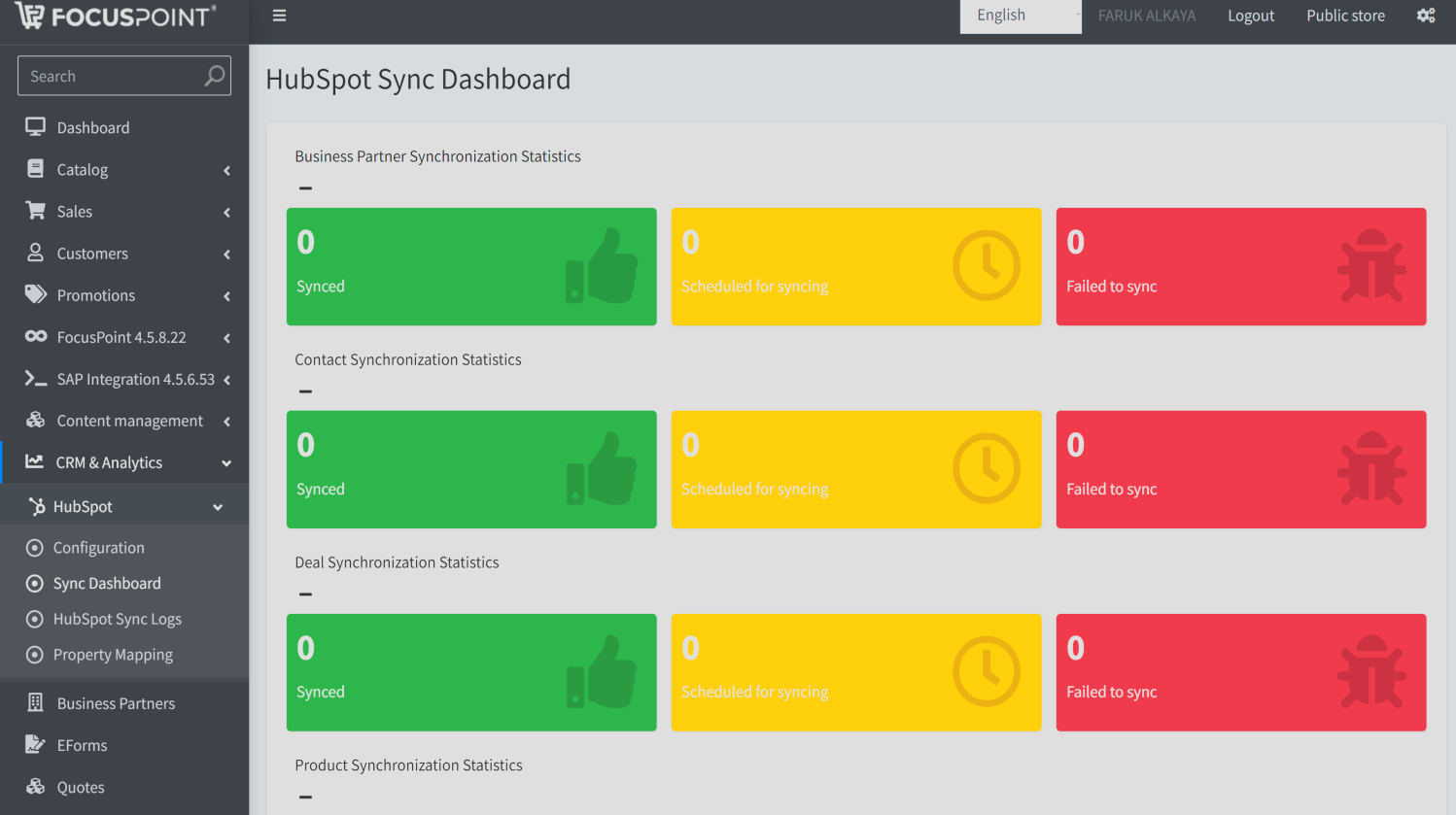
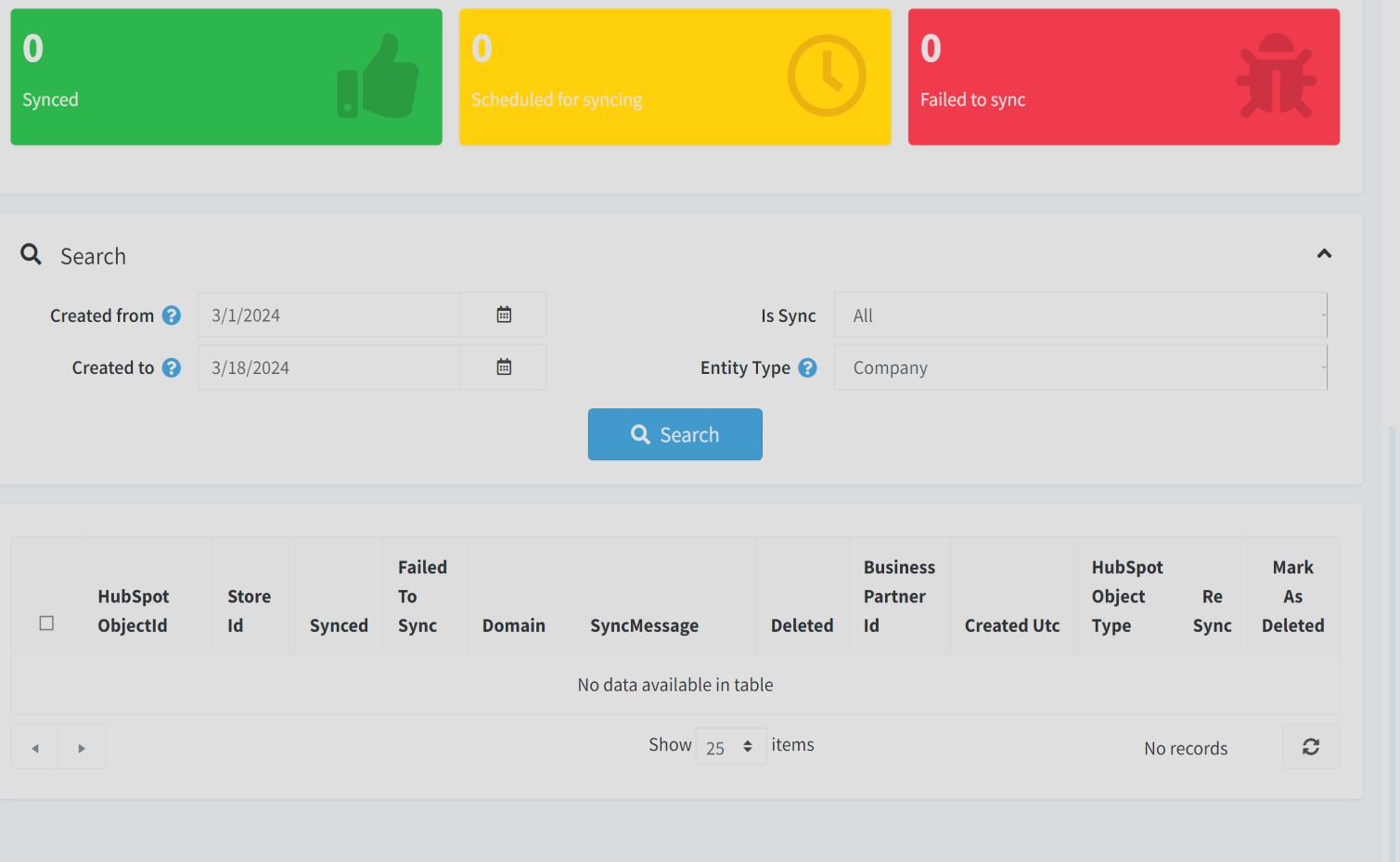
1. Tracing Integration:
In this dashboard you will see which kind of records synced to HubSpot with a detailed Grid View.
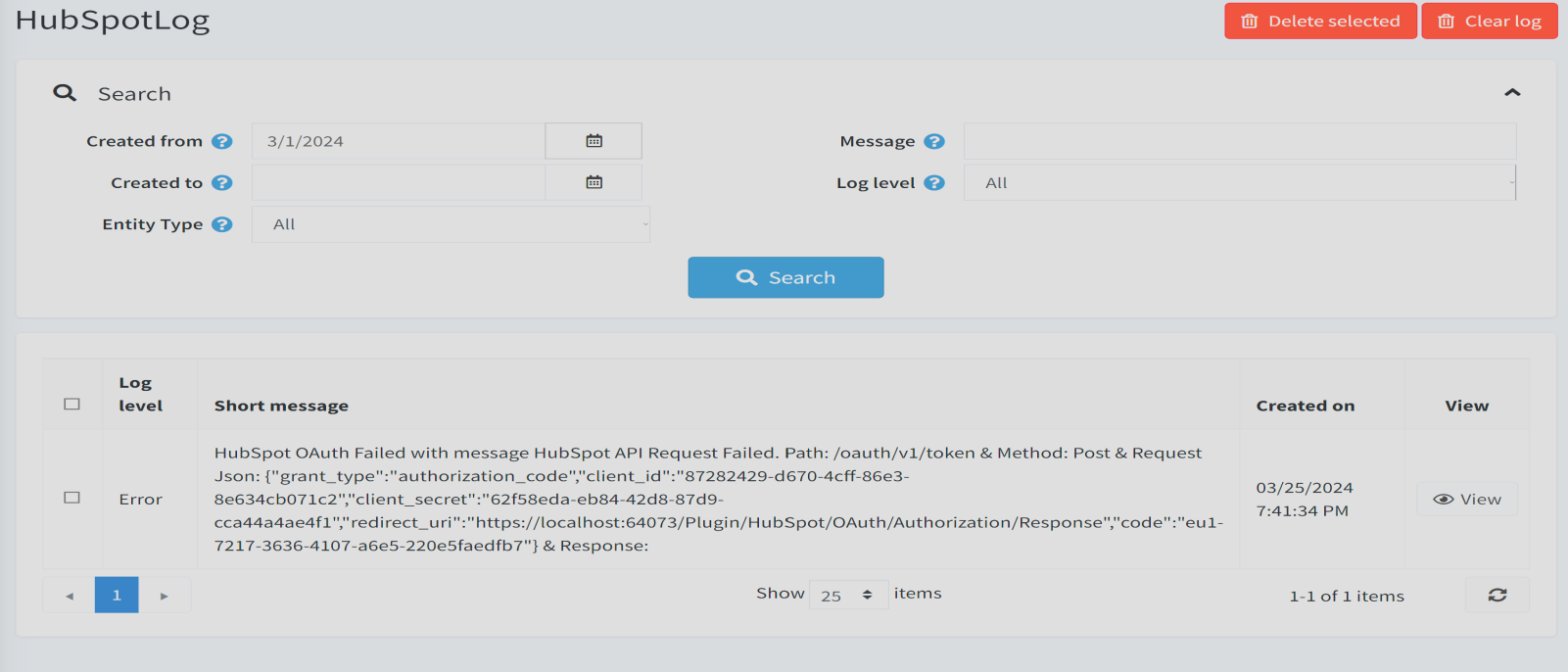
2. Integration Log Tracing
You can always see what happened on your integration between SAP > FocusPoint > HubSpot. FocusPoint also uses this section while issue tracing:
Was this article helpful?
That’s Great!
Thank you for your feedback
Sorry! We couldn't be helpful
Thank you for your feedback
Feedback sent
We appreciate your effort and will try to fix the article