How-To Configure the HubSpot Plugin:
1. Create Business Partner
2. create a company
3. authorize HubSpot Plugin / Configuration
1. Create a Business Partner
In HubSpot, click the gear icon to go to Settings

Click on Properties in the left-hand navigation and then click Create Property
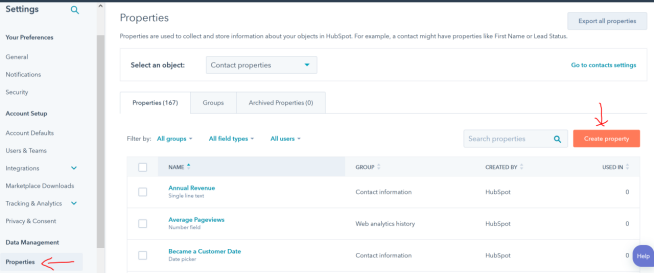
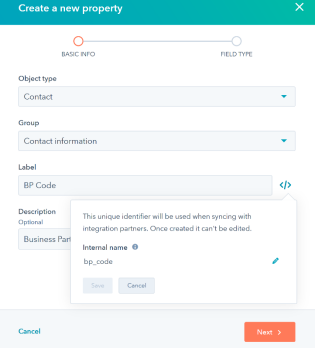
Fill out the below with the following information
Object type: Contact
Group: Contact Information
Label: BP Code (case sensitive)
Internal Name: “bp_code”
Click Next
Field Type: Single Line
Uncheck: Show in Forms
Click Create
2. Create a company
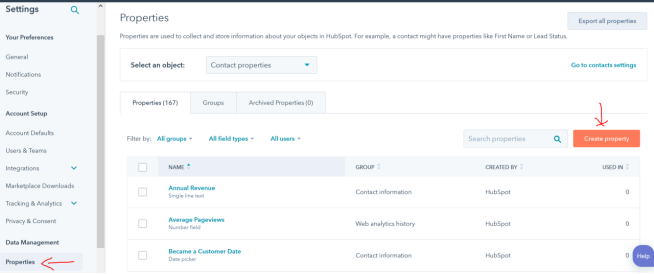
Click on Properties in the left-hand navigation and then click Create Property
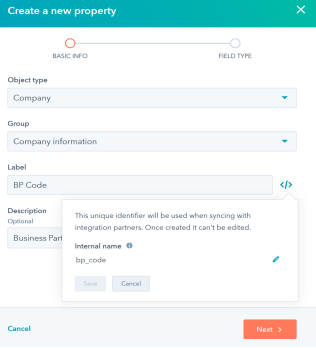
Fill out the below with the following information
Object type: Company
Group: Company info
Label: BP Code (case sensitive)
Internal Name: “bp_code”
Click Next
Field Type: Single Line
Uncheck: Show in Forms
Click Create
3. authorize the HubSpot Plugin / Configuration
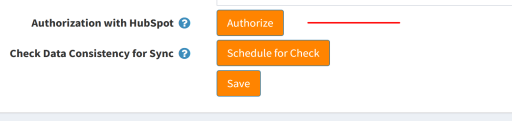
Go to your B2B Web App and select the “HubSpot Plugin / Configuration” menu (main admin menu) and click the ‘Authorize’ button on that page.
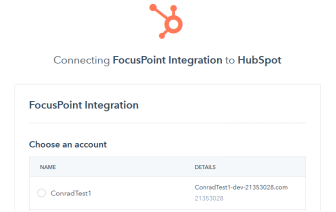
In the next screen, select your app and click ‘Choose account’
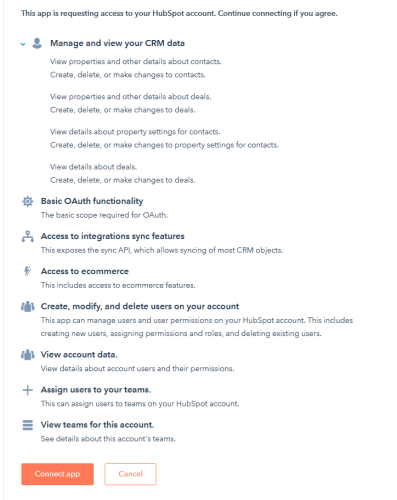
Scroll to the bottom and check “I’m not Robot” and then click ‘Connect app’
If successful, it will bring you back to a new configuration screen.
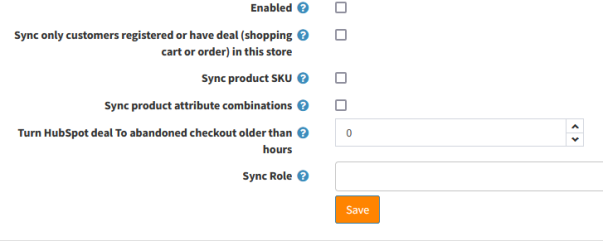
Choose the options for your business case, then check the Enabled button and click Save
Was this article helpful?
That’s Great!
Thank you for your feedback
Sorry! We couldn't be helpful
Thank you for your feedback
Feedback sent
We appreciate your effort and will try to fix the article