How-To Instructions: Setting Up Amazon Connector Plugin
1. FEATURES OF THE AMAZON CONNECTOR PLUGIN
2. SETUP STEPS WITHIN AMAZON ACCOUNT
3. GETTING YOUR AMAZON PRODUCTS CONNECTED TO YOUR FOCUSPOINT CATALOG
4. CONFIGURING THE AMAZON CONNECTOR PLUGIN WIDGET
1. FEATURES OF THE AMAZON CONNECTOR PLUGIN
- The plugin tries to find the product from Amazon using ASIN, SKU, Manufacturer part number.
- If it can't find anything in the FocusPoint store, the plugin will create a new unpublished product automatically.
- Amazon hides customer's email.
- The plugin creates a new virtual customer for all orders from Amazon.
- Plugin creates a customer's role "Amazon customers".
- The store's owner can use this for reporting to easily get all records from their Amazon store.
- Prices and stock quantities will be fed back to Amazon (this in turn comes from SAP as the source of truth).
2. SETUP STEPS WITHIN AMAZON ACCOUNT
-
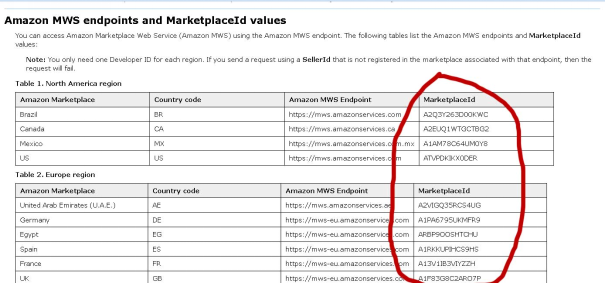
First, find your MarketplaceId values and Amazon MWS Endpoint, explained here: http://docs.developer.amazonservices.com/en_US/dev_guide/DG_Endpoints.html
-
Then, register as a developer on the AWS MWS: https://docs.developer.amazonservices.com/en_UK/dev_guide/DG_Registering.html#DG_Registering__RegisteringAsADeveloper
To register as a developer
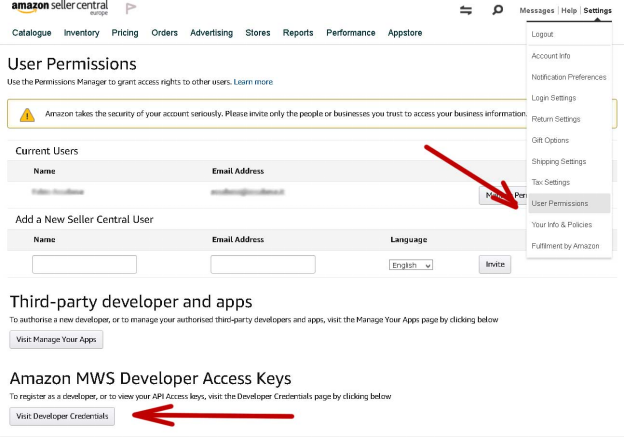
- Go to the User Permissions page in Seller Central and log into your Amazon selling account as the primary user.
- Under Amazon MWS Developer Access Keys click the Visit Developer Credentials button.\
- The Developer Central page appears. Apply for access here.
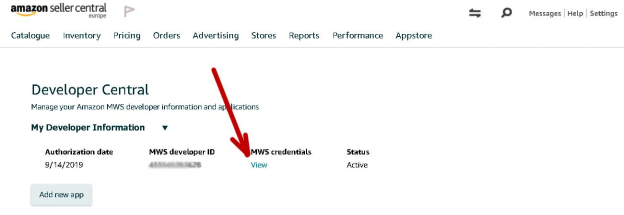
- Now, create Amazon MWS dev application credentials if you don't have them (see next page for details)
Then, copy AWS Access Key ID and Secret key.
-
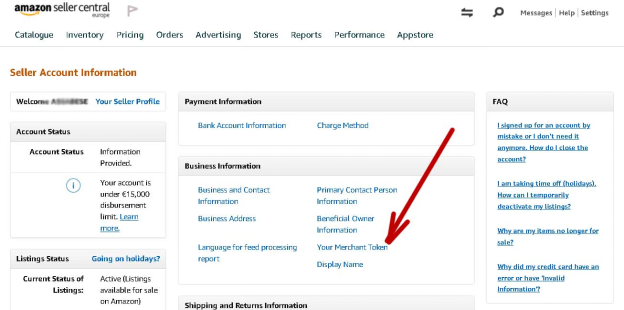
Copy Seller ID (Merchant Token)
-
Finally, configure the plugin on the FP website.
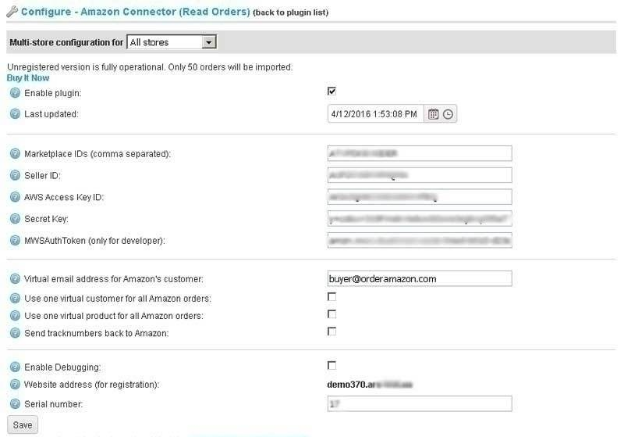
-
You will find all of the orders from Amazon within the site’s Orders.
3. GETTING YOUR AMAZON PRODUCTS CONNECTED TO YOUR FOCUSPOINT CATALOG
-
This is a plugin called Amazon Connector that the FocusPoint team can install for you if you sell products on Amazon
- Its purpose is to import orders from Amazon into your store and send tracking numbers back to Amazon, alleviating the need to add orders in your store manually
-
Click into your product list by going to Catalog > Products in the admin site
- Search for the SKU of the product that is also appearing on Amazon
- Once on that product’s page, scroll down until you see something called ‘Amazon Connector’ and click + to open the panel
- You will see the following:

-
To enable, you will need to find that ASIN number associated with your product on Amazon and enter/save it by product within FocusPoint; this is unique for each product on Amazon
- Here is some general information about what an ASIN number is and how to find it, for context
- Enter that ASIN code and hit ‘save’ at the product level
4. CONFIGURING THE AMAZON CONNECTOR PLUGIN WIDGET
-
After the plugin in installed per above, you will also need to Configure the plugin itself for needed functionality
-
Click into your widget list by going to Configuration > Local Plugins > Amazon Connector
- When you see the plugin, click on ‘Configure’ to set up
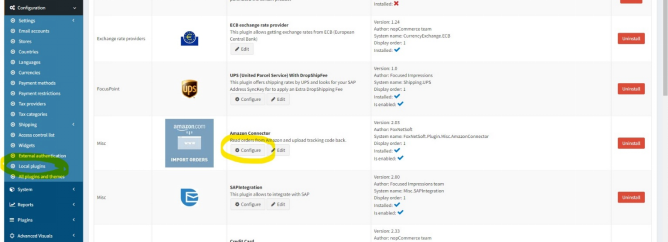
- When you see the plugin, click on ‘Configure’ to set up
-
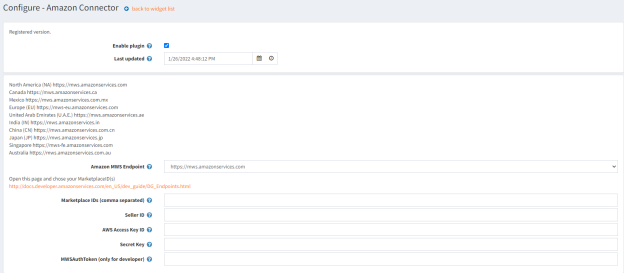
When you’re in the Configure panel, you will see the following items to complete
- Make sure that the box is checked for ‘Enable plugin’
- Select your Amazon MWS Endpoint
- Add Marketplace IDs
- Add Seller ID
- Add AWS Access Key ID
- Add Secret Key
- Add MWSAuthToken
-
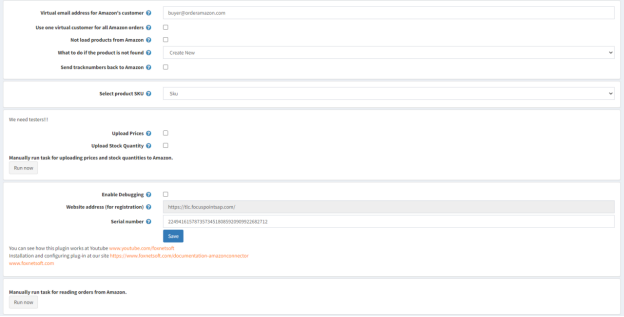
From the plugin page on FocusPoint, you will see links to view additional content on how the plugin works (see below, outlined in red)
Was this article helpful?
That’s Great!
Thank you for your feedback
Sorry! We couldn't be helpful
Thank you for your feedback
Feedback sent
We appreciate your effort and will try to fix the article
