1. SETTING UP YOUR SAP AND FOCUSPOINT SITE TO PAIR TO APP
-
* After the SAP training session with your FocusPoint implementation team, you will be able to complete the DTW templates to upload your Items (products), BPs, and web-enable your contacts via master data from SAP into FocusPoint- Once that has been completed and the checkout process has been configured in FocusPoint, you are ready to download and sign into the mobile app
- Be sure to test Sales Orders going from FocusPoint into SAP to ensure accuracy
- Once that has been completed and the checkout process has been configured in FocusPoint, you are ready to download and sign into the mobile app
2. DOWNLOADING THE APP
- In the Apple App or Google Play store, search for “FocusPoint QuickScan” and click
- Click to download/install the application on your mobile device
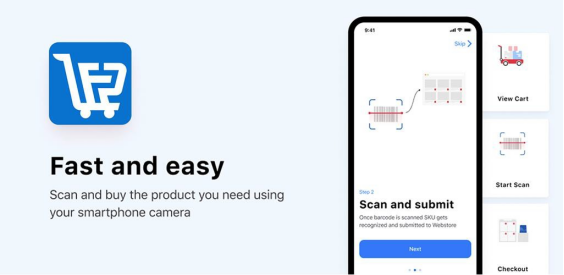
- Click to download/install the application on your mobile device
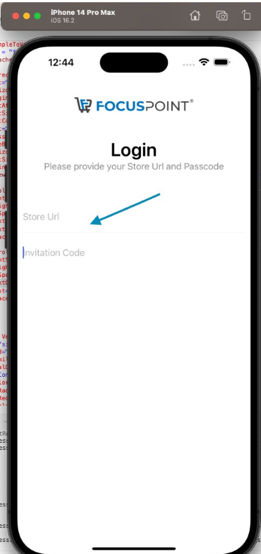
Store url invitation and invitation code will be sent.
3. USING THE APP
-
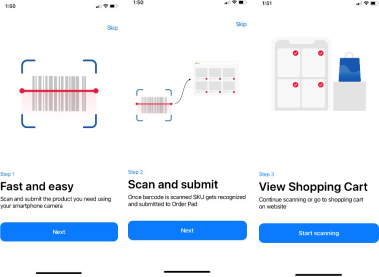
When you sign in for the first time, you will see the following Steps outlined:
-
After you download the app, you will see a screen to log in using your email address and the assigned Password provided to you
- Email: Your @ti-foods.com email address
- Password: SalesRep!
-
You will screen see a screen with options to Scan, view your Sales Rep Carts, and go to the Webstore
-
Click to ‘Sales Rep Carts’
-
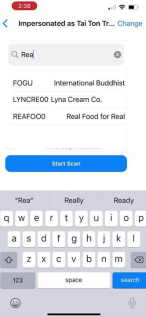
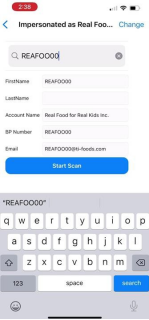
Click into the ‘Search Accounts’ tab and start typing in the BP ID#, Name, etc. and you will see that account dropdown list appear
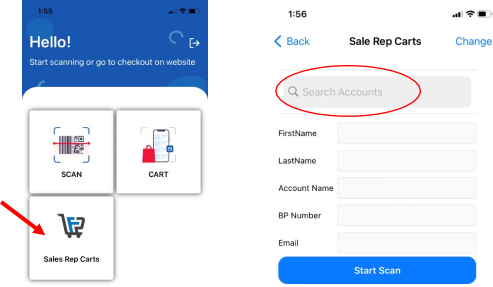
• Once you click into the correct BP to order for, you will be able to begin scanning bar codes and adding items to your cart:
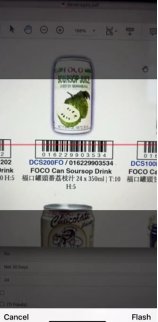
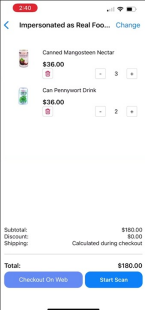
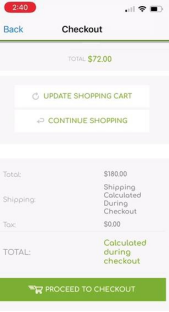
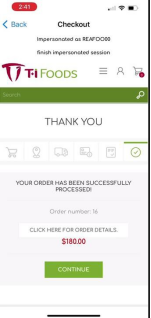
- Click ‘Start Scan’ to add additional items to the cart; -OR-
- Click ‘Checkout on Web’ to close out the sale for the customer
- Checkout will allow you to review the cart and then place the order on your customer’s behalf.
- Once checkout is completed for your customer, click ‘Back’ to get back to the Customer Search/Selection screen and find your next customer to order for!
Was this article helpful?
That’s Great!
Thank you for your feedback
Sorry! We couldn't be helpful
Thank you for your feedback
Feedback sent
We appreciate your effort and will try to fix the article