How To Show Payment Types on FocusPoint Checkout Based on Terms from SAP
1. Payment Methods Settings
2. Payment/Shipping Rules: Mapping Settings
3. Payment/Shipping Rules: Mapping List
1. Payment Methods Settings
If you would like your customers to only see the Payment Term type associated with their BP, you will want to enable this by following the steps here:
First, you can access the Payment Methods settings by by going to the panel Configuration > Payment Methods.
Click the ‘Configure’ tab for Purchase Order and uncheck ‘Require customer terms’ within that tab.
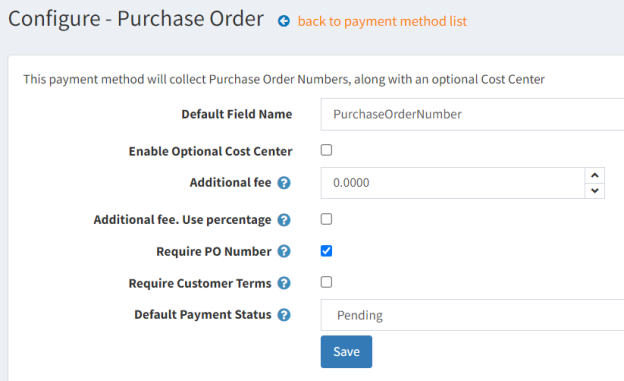
- In addition, you will need to have another payment gateway configured (Authorize.net or Moneris). You will click ‘Configure’ and add in your account details as required.
2. Payment/Shipping Rules: Mapping Settings
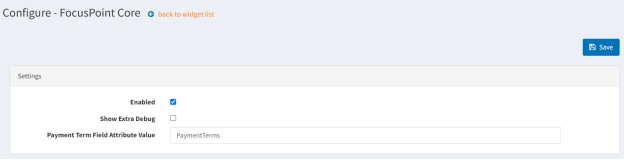
You can access this by going to the panel FocusPoint 3.0.XX > Administration > Payment/Shipping Rules > Mapping Settings.
Be sure to check ‘Enabled’ to initiate the mapping process.
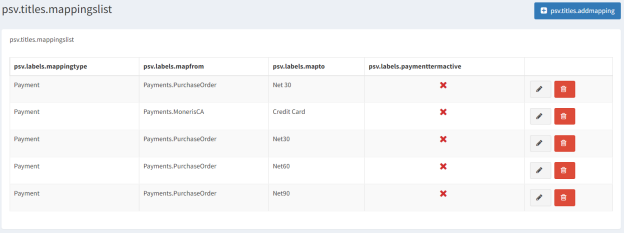
3. Payment/Shipping Rules: Mapping List
From SAP, FocusPoint can map information for ‘PaymentTerms’ with Net X or Credit Card.
-
* Note: PaymentTerms is a field that is brought over from SAP for each of your BP contacts. In your Customer table, click ‘Edit’ on any BP contact in FocusPoint and you will see the following information:

All different options for PaymentTerms must be mapped.
You can begin the mapping process by going to the panel FocusPoint 3.0.XX > Administration > Payment/Shipping Rules > Mapping List.
To begin the mapping process, first click +Add new. In the new window, you will Configure the following according to payment settings in customer info that comes over from SAP:
- Mapping Type: select ‘Payment’
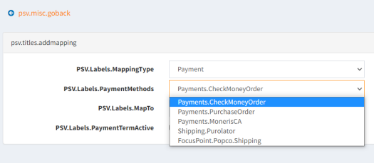
- Payment Methods: select the Payments method type that you want your customer to use for this particular Payment Term (i.e. Payments.Purchase Order, Payments.Authorize.net/Moneris)
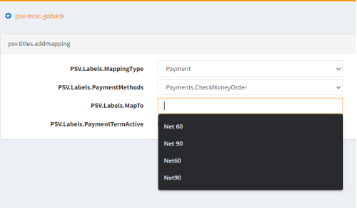
- Map to: enter in the Payment Term type from SAP here, i.e. Net 30, Net 60, Credit Card, etc.
- Payment Term Active: typically you would not check this box
The following are different examples of Payment Method types you may see:
An example of different types of ‘Map To’ options that you will copy/paste in from SAP:
Your final mapping list will look like the below:
Important to note:
-
* You must set up each option, i.e. must map each individually as terms, Net15, Net30, Credit Card, etc.- If your Payment Terms have options for Net30 and Net 30 (with a space AND without a space designated in SAP as options) you MUST may all of them in this table.
Was this article helpful?
That’s Great!
Thank you for your feedback
Sorry! We couldn't be helpful
Thank you for your feedback
Feedback sent
We appreciate your effort and will try to fix the article