1. Adding Lead Times on Products in FocusPoint
There is a way to display lead times on items via their individual product pages, as shown here on the front end of your site:
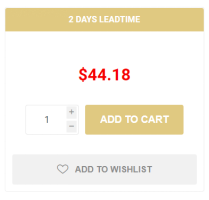
First, you will want to create an Additional Field Mapping in FocusPoint located in FocusPoint navigation under SAP Integration > Additional Field Mapping. Click ‘Add New Mapping.
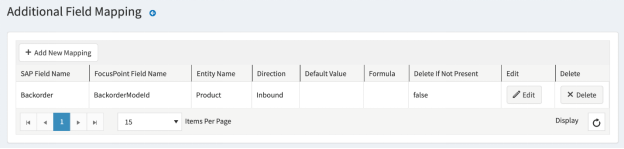
Item Card needs to have InstockMessage & OutstockMessage (this is the entity key) This is the SAP field Name.

Prefilters on additional field mapping and then a query is written
You will then need to enable (select) a feature within located on FocusPoint within 3.0.XX > Administration > Product Global Settings (if it’s a parent/child item) as follows:
Inspect Inventory At Child Level – check this box:

You will then need to access the catalog settings under 3.0.XX > Administration > Catalog Settings
This comes from the extended attributes at the child level (see #1). You will see the following questions and how to enable them:
-
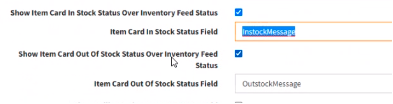
* Show Item Card In Stock Status Over Inventory Feed Status - check- Item Card In Stock Status Field – “add entity name”
- Show Item Card Out Of Stock Status Over Inventory Feed Status - check
- Item Card Out Of Stock Status Field – “add entity name”
Was this article helpful?
That’s Great!
Thank you for your feedback
Sorry! We couldn't be helpful
Thank you for your feedback
Feedback sent
We appreciate your effort and will try to fix the article