How-To Instructions: Future Discounts Plugin
1. Install Future Discounts Plugin
2. Create the Future Offer
3. Create a Discount
4. Set up Message Template
5. User Experience
Future Discounts:
1. FP to install Future Discounts Plugin
2. Create the Future Offer
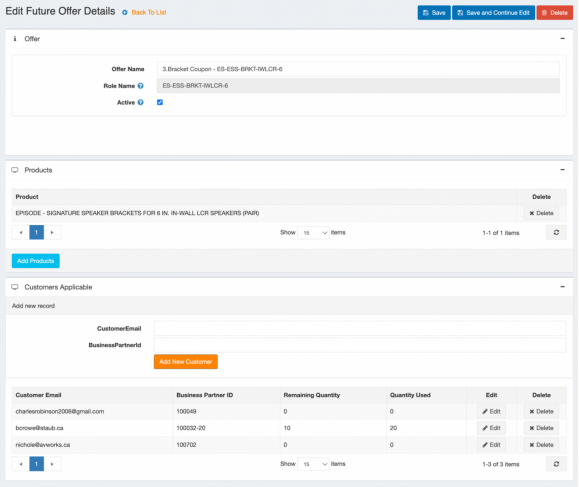
a. Create an Offer Name
b. Create a role name (this gets auto added and removed from the customer)
c. Activate
d. Hit Save and Continue Edit
e. Add the products it should be assigned to (this would be the brackets)
f. Add the customer email in the Customers Applicable Table and the Quantity Remaining
i. Enter the Customer Email and click Add New Customer
1. Only customer email is required
ii. Quantity remaining is the total qty of times that customer can use the discount
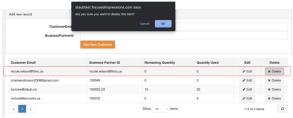
Note: When you click delete in the customer, it just deletes the qty, not the actual email/bp, from the table.
3. Create a Discount
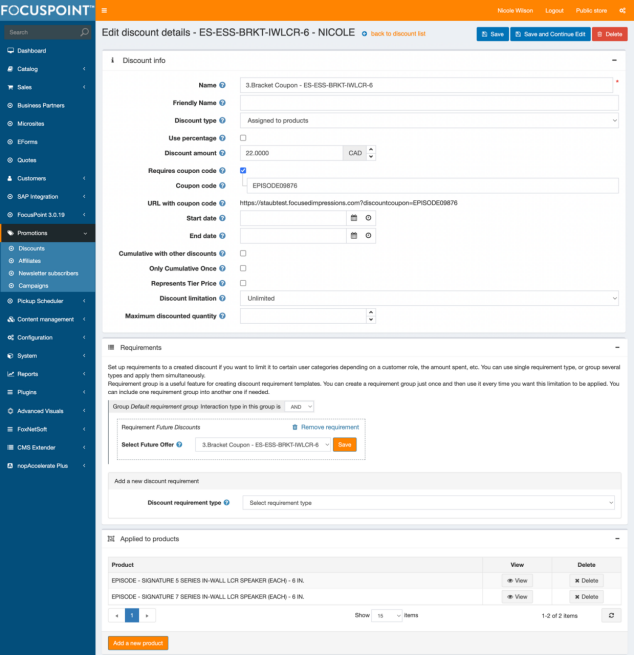
a. Name the discount
b. Select assign to products
c. Set the discount amount
d. Requires coupon code
i. Add a coupon code
e. Add a requirement of future discounts
i. Select the future offer name
f. Do not set a discount limitation, this comes from the quantity remaining field in the future offer above
g. Applied to products
i. Select the product(s) you allow the discount to be applied to (in this case the speakers)
4. Set up the Message Template
a. Go to Message Templates under the Content Management
b. Message Template Name = FutureOfferMessageTemplate
c. Valid Tokens for this message template are:
i. %FutureOffer.CouponCode% (this is the coupon code created from the discount)
ii. %FutureOffer.OfferQuantity% (this is the quantity remaining from the future offer)
iii. %FutureOffer.DiscountValidProducts% (these are the applied to products from the discount)
iv. %FutureOffer.DiscountAmount% (this is the discount amount)
5. User Experience:
1. When you enter a customer email in the Future Offer panel, the role name you created in 1B gets auto added to the customer.
2. Next the customer will go on to the site to purchase 1 or more of the items from the FutureOffer.discountValidProducts. They will apply the coupon code, the discount can only be used for a max qty that was specified. It can be over a single order or multiple orders.
3. For every order placed the remaining balance of the coupon code will be emailed to the customer. It also lists the products the coupon can be used on. (ie. If I have 5 remaining and I place and order for 3, I will receive an email stating I have 2 coupon codes remaining)
4. When the customer purchases all the qty specified from the discount limitation the role that was automatically added (from 1) will be automatically removed and the code no longer valid.
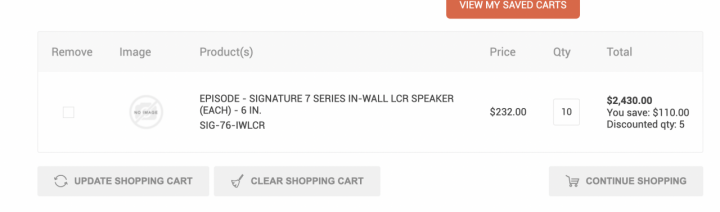
5. If the customer purchases more than the qty remaining in a single transaction, they will see a note in the cart stating they received the discount off the remaining qty available. Example: and I place and order for 10 but only have 5 coupons remaining, here is what you see in checkout:
Was this article helpful?
That’s Great!
Thank you for your feedback
Sorry! We couldn't be helpful
Thank you for your feedback
Feedback sent
We appreciate your effort and will try to fix the article