1. GETTING YOUR ON SALE ITEMS FROM SAP TO SHOW AS SALE ITEMS IN FOCUSPOINT
-
* If you are using Period and Volume Discounts in SAP, there are several ways that you can feature those on sale products via FocusPoint- Option 1
- To add a Category Page for Sale Items that will appear on your website, go to Catalog > Categories and click ‘Add new’
- Name your category page and hit Save
- Be sure to also select ‘export to SAP’
- To begin setting up a page to list sale items, go to Catalog > Categories > [Select the sales category and click ‘edit’]
- Set a Category Synonym (ex. ‘S’)
- Set a Qualifier (i.e. Period)
- Name your category page and hit Save
- Once your category is created, go to SAP Integration > Additional Field Mapping
- Add new: fill out UDF source, sale, product, inbound, category synonym, ‘false’

- Add new: fill out UDF source, sale, product, inbound, category synonym, ‘false’
- To add a Category Page for Sale Items that will appear on your website, go to Catalog > Categories and click ‘Add new’
- Option 1
-
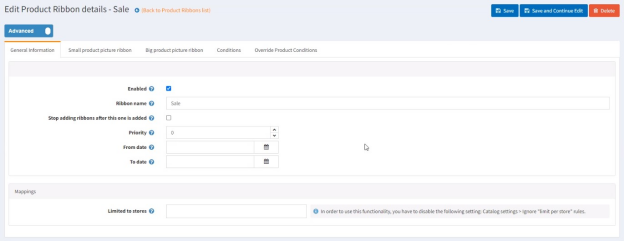
  *   If you want to add a ribbon that denotes a sale product visually, you may add them by going to _Advanced Visuals > Plugins > Product Ribbons_
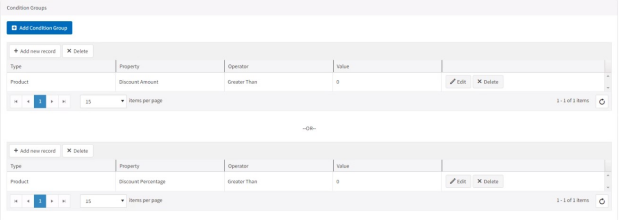
  *   After naming a product ribbon, you can also click the tab to set conditions such as: Discount Amount & Discount Percentage
- Option 2
- Need this context
Was this article helpful?
That’s Great!
Thank you for your feedback
Sorry! We couldn't be helpful
Thank you for your feedback
Feedback sent
We appreciate your effort and will try to fix the article