How-To Instructions: Setting Up Tax Categories and Tax Providers on FocusPoint and SAP
1. Tax Categories (FocusPoint)
2. Tax Providers and Rates (FocusPoint)
3. Tax Setup FP Configuration (SAP)
4. Tax Exemptions (additional field mapping)
5. Review Tax Settings (FocusPoint)
Step 1: Tax Categories
The categories identify products that have specific tax rates depending on where they are taxed.
For example:
· Books shipped to a Canadian address are subject to GST (Goods and Services Tax) but not PST (Provincial Sales Tax). In provinces with a Harmonized Sales Tax (HST) only the GST portion is applied, with the exception of Newfoundland, which does charge full HST for books.
Note – out of the box, all items are mapped to use the first tax category. If you delete this, you will be required to manually go through each item’s admin panel to remap them. If you only have one tax category (e.g. all items are subject to full tax in their place of sale) then rename the first category, do not delete it.
Additional information on tax categories can be found here: https://docs.focuspointsap.com/tax-categories
Step 2: Tax Providers and Rates
Tax Providers
Tax provider options can be found in your FocusPoint backend under Configuration > Settings > Tax providers
In FocusPoint, you have three options for Tax Providers:
-
* Manual (fixed by country/state/zip) – click ‘Configure’ to set this up- Avalara (third party integration) – if using this, let your project manager know and we can install the plugin to configure/connect
- TaxJar (third party integration) – if using this, let your project manager know and we can install the plugin to configure/connect
Additional information on Tax Settings can be found here: https://docs.focuspointsap.com/tax-providers
Tax Rates
Tax rates are the amount calculated against the order. The fixed rate matrix will work with tax codes sent on the addresses from SAP.
The rate works from the most granular entry. An asterisk (*) is considered a wildcard.
For example:
-
  *   Saskatchewan uses GST+PST.
  *   GST = 5%
  *   PST = 6%
  *   Total = 11%
Using the example below, a customer in Saskatchewan who is GST exempt would use the SKONLY tax rate and pay only 6% on the purchase.
If the customer is in Saskatchewan and has SK as the tax code in SAP, they will pay 11%.
To determine which rate to use, the system will look at the shipping address entered during checkout.
First, it determines that the customer is in Canada. Then it determines they are in Saskatchewan. Since there are two entries for that province, then it must look for more granular data to determine which rate to use.
It will continue down the chain and look at the zip (postal code). Since this is a wildcard e.g. all postal codes in the Saskatchewan region should use this rate, then it moves to the next field. This time it looks at TaxCode to determine if the customer’s shipping address is set to SKONLY or SK and determine the rate to charge.

In the event that a customer is in Saskatchewan, and there are multiple entries in the table, but they do not have SKONLY or SK set for a tax code, the system will not be able to programmatically determine the rate to apply.
So, a third entry should be added. This entry has a wildcard in the TaxCode field to apply the standard retail Saskatchewan tax rate of 11% to all customers in Saskatchewan that do not have a tax code specified.

If there are no special tax rates, then this is the only line required.
Step 4: Tax Setup in FP Configuration (SAP)
Within the FP Configuration on SAP, you will need to add the Tax Codes to the ‘FP Tax Mapping’ tab (see screenshot below).
These will reflect the same country/province/state codes that you have added to the Manual Tax Provider table on FocusPoint. Be sure to note the Tax Category that each applies to (i.e. FULL if the tax rate applies to everything).
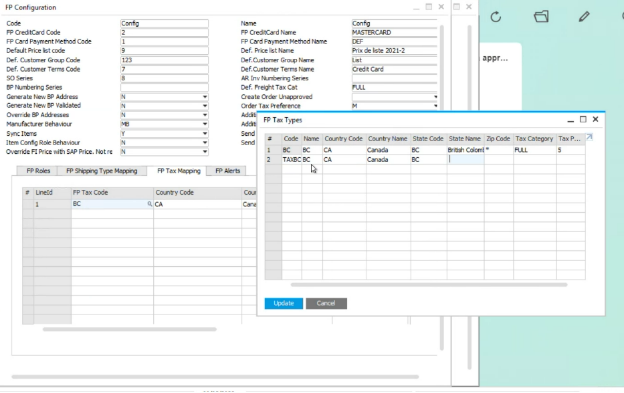
For additional notes on setting this up in SAP, visit: http://docs.focuspointsap.com/sap-fp-configuring#2.4.4.3
Step 5: Tax Exemptions
If you are using a tax table that designates Liable vs. Exempt taxed businesses, you will want to complete Additional Field Mapping within SAP and FocusPoint to expose those details to the system.
Additional Field Mapping in SAP
You can access this in SAP by going to Tools > MITI > Additional Field Mapping and completing the following:

Here is the query to input:
SELECT CASE WHEN T0."VatStatus" = 'Y' THEN 'N' ELSE 'Y' END AS RESULT FROM OCRD T0 WHERE T0."CardCode" = '[%CARDCODE]'
Additional Field Mapping in FocusPoint
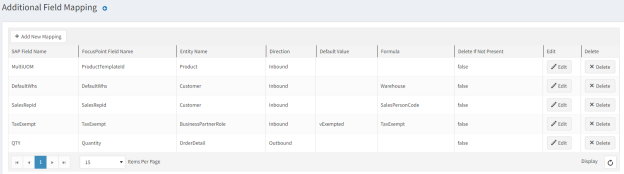
You can access this in FocusPoint via the SAP Integration > Additional Field Mapping section and click +Add New Mapping and adding the following details (spacing and capitalization exactly as is here):
-
* SAP Field Name: TaxExempt- FocusPoint Field Name: TaxExempt
- Entity Name: BusinessPartnerRole
- Direction: Inbound
- Default Value: vExempted
- Formula: TaxExempt
- Delete if not present: false
Step 6: Review Tax Settings
There are specific tax settings that are either business or regional decisions.
These can be found in your FocusPoint backend under Configuration > Settings > Tax settings
In most jurisdictions, taxes are based on the shipping address. Companies may have orders being placed from one region, but the items are being sold in another. Taxes are collected where the item is being sold, not ordered from.
The default tax category for items can be changed. Note this will only take effect if items are added after this has been changed, so items will need to be resynced if this is changed from default if the items have already been created on the site.
The default tax address should be the tax liable address of your organization (the seller/owner of the site).
Tax display settings are business preference.
Applying tax to shipping costs is regional. All Canadian jurisdictions charge tax on shipping, however other countries (and certain states) do not charge tax on shipping. Please consult with your accountant on whether this is applicable.
If it is selected, you can apply a tax category to it for calculation purposes following the rules as above.
Additional information on Tax Settings can be found here:
https://docs.focuspointsap.com/tax-settings
Was this article helpful?
That’s Great!
Thank you for your feedback
Sorry! We couldn't be helpful
Thank you for your feedback
Feedback sent
We appreciate your effort and will try to fix the article