1. Adding Rep Carts to the Navigation
After you set up your Sales Rep Mappings in SAP and FocusPoint (See How-To Setup a Sales Rep in FocusPoint), the sales rep will then be able to place orders for their customers through front end impersonation. Step 1 is to add the Rep Carts link to the navigation bar.
a. Go to Mega Menu >> Menu Items Tab
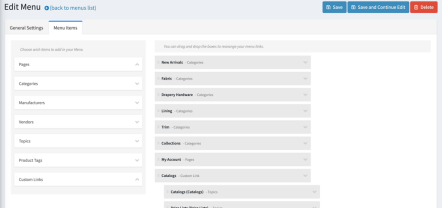
b. Add a new Custom Link
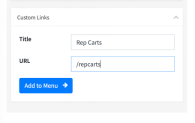
Title: Rep Carts
URL: /repcarts
Add to Menu
c. Once the Rep Carts link is over in the right menu column, open the accordion and add a customer role to the menu item
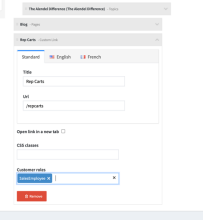
i. This will be the same role you used for the sales reps (ie. Sales / SalesEmployee)
ii. This will then restrict the menu item so this link is only seen by the sales reps
2. How Reps Place Orders for their Customers
When a sales rep logs into your FocusPoint eCommerce site, they will go to the Rep Carts page (via the link in the menu)
Rep Carts - Shop
a. Search for the customer via email, Name, Phone or BP Account number
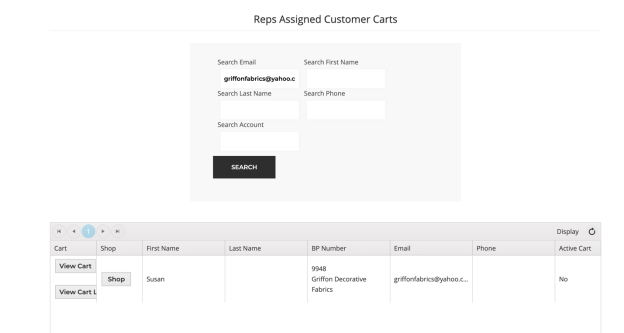
b. Click the Shop button to begin the impersonation session starting at the home screen, where you will see the customers products, pricing, addresses at checkout.
c. Either add items to the cart or place a full order for the customer
d. When finished be sure to hit “finish impersonation session” on the top header

Rep Carts - View Cart
a. Search for the customer via email, Name, Phone or BP Account number
b. Click view cart – this will take you directly into the customers cart
c. When finished be sure to hit “finish impersonation session” on the top header
Rep Carts - View Cart List
a. If a FocusPoint site uses multi cart functionality (the ability to have multiple carts with a save feature) you can view a customers cart list(s) by clicking “view cart list”
b. Search for the customer via email, Name, Phone or BP Account number
c. Click view cart list – this will take you directly into the customers cart list
d. Select a cart to edit or checkout with
e. When finished be sure to hit “finish impersonation session” on the top header
Was this article helpful?
That’s Great!
Thank you for your feedback
Sorry! We couldn't be helpful
Thank you for your feedback
Feedback sent
We appreciate your effort and will try to fix the article