You will find the plugin if you search for “Payment Methods” and select ‘Configure’ on the one that has the system name of: Payments.MonerisCA
The FocusPoint Moneris integration plugin looks like this—please continue reading to learn about each field and how to setup the configuration details:
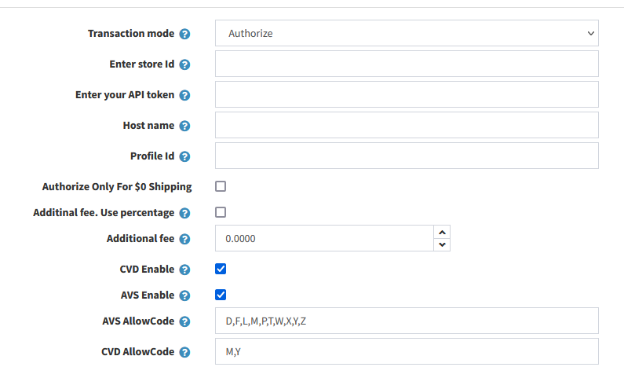
Transaction mode:
You request an authorization when a customer makes a purchase. An authorization, provided by the customer’s card issuing bank, confirms the cardholder’s ability to pay, ensuring that the customer's credit card account is in good standing with sufficient funds to complete the purchase.
An authorization ensures that your customer's credit account is open, in good standing, and has sufficient funds to complete the submitted transaction. If the card passes these checks, the issuing bank will place a hold on the funds for the amount of the authorization.
For a transaction to be completed successfully, you need to perform an authorization and a capture on the transaction.
An authorization ensures that your customer's credit account is open, in good standing, and has sufficient funds to complete the submitted transaction.
If the card passes these checks, the issuing bank will place a hold on the funds for the amount of the authorization.
After a successful authorization has been completed, you will need to perform a capture to transfer funds from the customer's bank account to your merchant bank account.
If the setting is on authorization only, then a capture needs to be initiated manually either through FocusPoint or through an external system like Boyum iPayment.
Store Id:
Refer to the "Useful Information" e-mail you received when you signed up for a Moneris Gateway account. This e-mail contains your merchant ID and store ID. With this information, visit the store activation page at moneris.com/activate, and follow the prompts to activate your store.
API token:
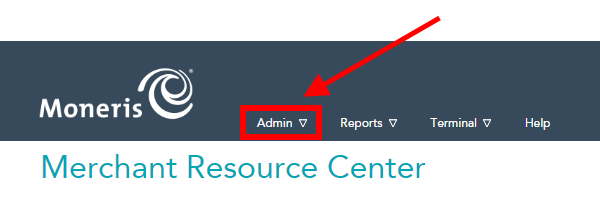
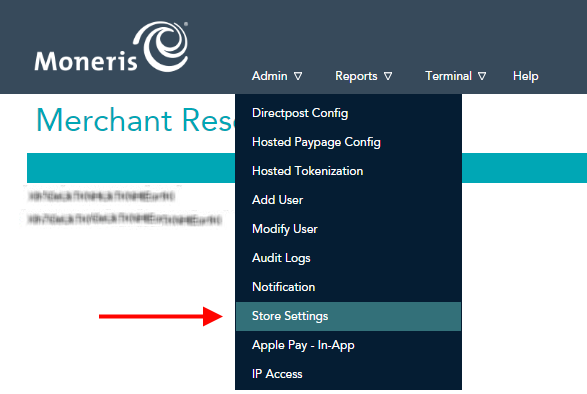
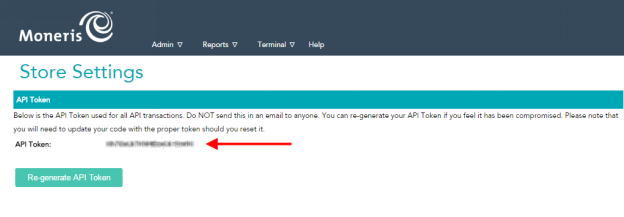
Inside the Moneris Gateway merchant account, you need to obtain an API Token. Go to My Account and click on the ADMIN. Then click on Store Settings and click on the button to generate an API Token.
Host name:
The host name if it’s a production environment is:
www3.moneris.com
Profile Id:
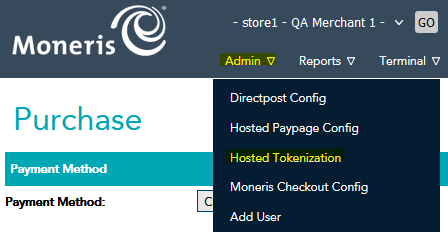
When logged into Moneris, go to admin/hosted tokenization:
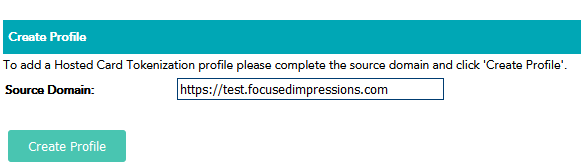
In the source domain, enter your site’s URL and click Create profile:
Copy the Id and enter it into the Profile Id field in the control panel in FocusPoint:

If you get this error (in the image below) There are currently no domains configured - You need to enter the full url with no www before it. Example: https://customer.com
OR if you do the www (better for search rankings) Conrad needs to update b1if connection to only use https://www.customer.com (with the www) and drop https://customer.com (without the www)
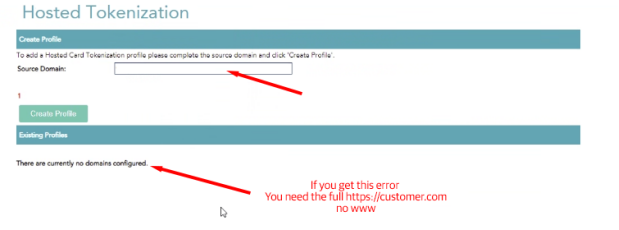
MAKE SURE TO LEAVE OFF THE TRAILING "/" backslash (otherwise you get an invalid credentials error)
example:
https://customer.com instead of https://customer.com/
Additional fees:
If you intend to charge customers a fee for using credit cards (to cover processing fees etc), you can enter the fee into the additional fee field. This is a currency amount. If you prefer to make it a percentage of the transaction, check the box to use percentage. The value entered into the “Additional fee” field will be converted to a value of the
CVD:
The Card Validation Digits (CVD) value refers to the numbers appearing on the back of the credit card rather than the numbers imprinted on the front. It is an optional fraud prevention tool that enables merchants to verify data provided by the cardholder at transaction time. This data is submitted along with the transaction to the issuing bank, which provides a response indicating whether the data is a match.
The response that is received from CVD verification is intended to provide added security and fraud prevention, but the response itself does not affect the completion of a transaction. Upon receiving a response, the choice whether to proceed with a transaction is left entirely to the merchant. The response is not a strict guideline of which transaction will approve or decline.
CVD is only supported by Visa, MasterCard, Discover, JCB, UnionPay and American Express.
We recommend to always have this enabled.
Leave the CVD AllowCode field default.
AVS:
Address Verification Service (AVS) is an optional fraud-prevention tool offered by issuing banks whereby a cardholder's address is submitted as part of the transaction authorization. The AVS address is then compared to the address kept on file at the issuing bank. AVS checks whether the street number, street name and zip/postal code match. The issuing bank returns an AVS result code indicating whether the data was matched successfully. Regardless of the AVS result code returned, the credit card is authorized or declined by the issuing bank.
The response that is received from AVS verification is intended to provide added security and fraud prevention, but the response itself does not affect the completion of a transaction. Upon receiving a response, the choice to proceed with a transaction is left entirely to the merchant. The responses is not a strict guideline of whether a transaction will be approved or declined.
AVS is only supported by Visa, MasterCard, Discover and American Express.
We recommend to not use AVS because it will often cause issues if the address is not entered in identically to the bank records (e.g. a postal code is entered M6M2Y2 where the bank has M6M 2Y2 on record will fail the check).
Leave the AVS AllowCode field default.
Was this article helpful?
That’s Great!
Thank you for your feedback
Sorry! We couldn't be helpful
Thank you for your feedback
Feedback sent
We appreciate your effort and will try to fix the article