How-To Instructions: Parent/Child Setup in SAP
1. OVERVIEW AND REFERENCE POINTS ON FOCUSPOINT USER SETUP DOCUMENTATION SITE
2. SAP SETUP IN FP ITEMCONFIG
3. UPDATING YOUR DATA IN BULK VIA SAP DTW
1. OVERVIEW AND REFERENCE POINTS ON FOCUSPOINT USER SETUP DOCUMENTATION SITE
- Overview of Parent/Child relationship in FocusPoint and what it looks like on the front end to a customer: http://docs.focuspointsap.com/parent-child
- A link to the SAP FP Item Config setup guide and how to set up the item within SAP: http://docs.focuspointsap.com/sap-fp-item-config#4.2.3
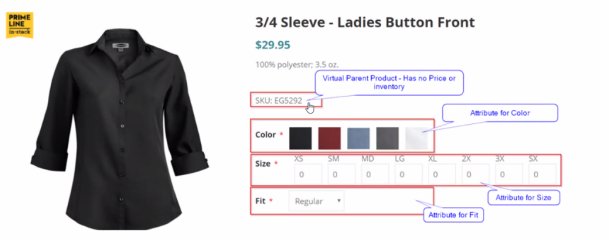
- Parent/Child Attributes – example
- Parent – shirt
- Child – color and size
- Each color and size would be a different SKU (there would be no SKU for parent item)
2. SAP SETUP IN FP ITEMCONFIG
-
* When you select different combinations (such as a size, color, and/or fit) then it would select the SKU that matches those combined ‘child’ attributes- If you have different SKUs per color and in SAP, there is ‘black – small’, ‘blue – small’ etc
- In the FP Item Config, there is a way to have a generic item – does not need a SKU, just an ItemConfig
- In Item Master Data, there is a way to assign a FP Web Parent and the FPItemConfig number to the children (aka sizes, colors, other SKUs)
- If you have different SKUs per color and in SAP, there is ‘black – small’, ‘blue – small’ etc
-
* Workflow on FPItemConfig for the Parent Item * This will just need to be created, and add the Item Category only -
  *   Workflow on FPItemConfig for the Children
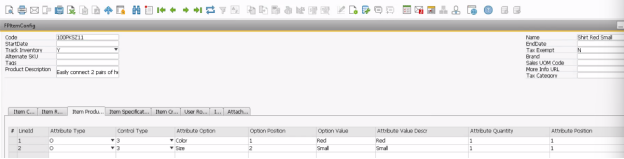
  *   Go to the ‘Item Product’ tab
  *   Select new LineID
  *   Add Attribute Type (select ‘Option’)
  *   Assign a Control Type (checkbox, radio button, dropdown, etc)
  *   Add an Attribute Option
      *   Define Attributes such as Color, Size, etc
      *   This happens in a separate table on SAP
  *   Option Position is which order the selection option appears on FocusPoint
      *   Should someone select ‘color’ or ‘size’ first
  *   Assign an Option Value (i.e. add ‘Red’ if you have a red color option for the product)
  *   Attribute Value Description will be what the customer sees as a choice on FocusPoint
  *   Assign an Attribute Position
      *   Of the sub-options (color, size, etc) select what position that specific attribute should appear as (if that does not matter, you can set all as 1)
3. UPLOADING YOUR DATE IN BULK VIA SAP DTW
- To upload data in bulk, use the DTW Excel templates and forms as provided by FocusPoint:
- To streamline the data, it would be helpful to add this information into the DTW template called ‘FP ItemConfig Legend’
- Each tab within the DTW Excel template aligns with the fields in SAP (Item Header, Category, Related Items, Product Attributes, Specifications, Cross Sell, User Roles, Images, and Attachments)

- Each tab within the DTW Excel template aligns with the fields in SAP (Item Header, Category, Related Items, Product Attributes, Specifications, Cross Sell, User Roles, Images, and Attachments)
- To set up a training session with our SAP experts or to review your DTW sheets, please contact your project manager!
- Internal FocusPoint Sharepoint link to DTW Templates: https://focusedimpressions.sharepoint.com/:f:/r/Shared%20Documents/DTW%20Spreadsheet%20Samples/NEW%20DTW%20Templates?csf=1&web=1&e=VfSu8G
Was this article helpful?
That’s Great!
Thank you for your feedback
Sorry! We couldn't be helpful
Thank you for your feedback
Feedback sent
We appreciate your effort and will try to fix the article