OVERVIEW AND REFERENCE POINTS ON FOCUSPOINT USER SETUP DOCUMENTATION SITE
-
* Overview of Discount by Customer Group in FocusPoint and what it looks like on the front end to a customer: [http://docs.focuspointsap.com/email-accounts](http://docs.focuspointsap.com/email-accounts)
1. HOW TO SETUP A NEW EMAIL ACCOUNT
-
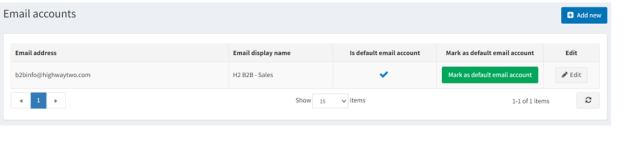
* To add a new email account click Add new.
-
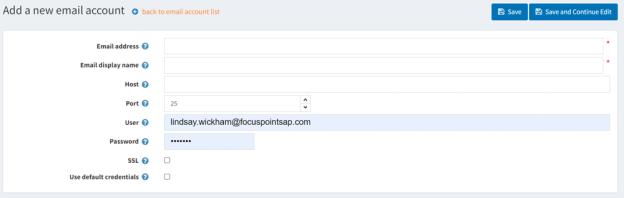
* The _Add a new email account_ window is displayed:
-
  *   Define the following email account information:
  *   In the Email address field enter the from email address for all outgoing emails of your store. Example, [sales@yourstore.com](mailto:sales@yourstore.com).
  *   In the Email display name field, enter the displayed name for outgoing emails of your store. Example, "Your store sales department".
  *   In the Host field, enter the host name of IP address of your email server.
  *   In the Port field, enter the SMTP port of your email server.
  *   In the User field, enter the username of your email server.
  *   In the Password field, enter the password of your email server.
  *   Select the SLL checkbox, to use Security Sockets Layer to encrypt the SMTP connection.
  *   Select the Use default credentials checkbox, to use default credentials for the connection.
  *   Click Save. The window is expanded, as follows:
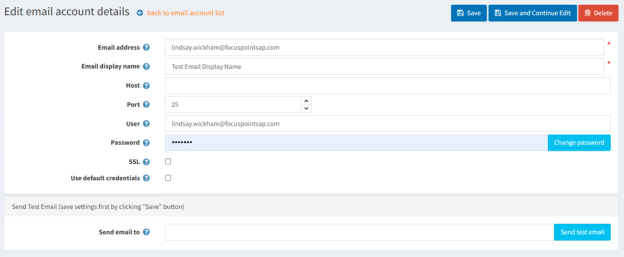
In the Send email to field, enter the email address for the test email and click Send test email**.**
2. HOW TO SEND A WELCOME EMAIL

-
* Click Edit- Make sure the following is filled out properly:
- Email Address, Host, Port, User, Password (this was probably already filled in but won’t display in FocusPoint for security purposes) and make sure SSL is selected.
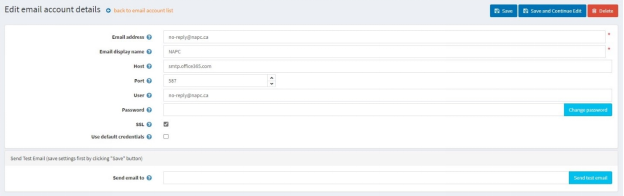
You can send a test email from this page also.
*For additional training please reach out to your Project Manager!
Was this article helpful?
That’s Great!
Thank you for your feedback
Sorry! We couldn't be helpful
Thank you for your feedback
Feedback sent
We appreciate your effort and will try to fix the article