How-To Instructions: Filling Out the FP ItemConfig DTW
1. FP ItemConfig DTW overview
2. completing 01 - item header
3. completing 02 - categories
4. completing 03 - related items
5. completing 04 - product attributes
6. COMPLETING 05 – SPECIFICATIONS
7. COMPLETING 06 – CROSS SELL
8. COMPLETING 07 – USER ROLES
9. COMPLETING 08 – IMAGES
10. COMPLETING 09 – ATTACHMENTS
11. where to upload your dtw
12. ADDITIONAL DTW TEMPLATES
1. FP ITEMCONFIG DTW OVERVIEW
- Each sheet of the template is for one tab in SAP. You only need to fill out the tabs that pertain to your site and products.
2. COMPLETING 01 - ITEM HEADER
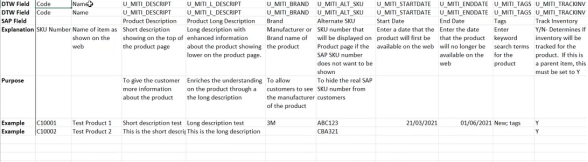
- For this tab, include any information that will be on the item header.
- Product Code – Product sku
- Product Name
- U_MITI_DESCRIPT is the Short Description of the product
- U_MITI_L_DESCRIPT is the Long Description of the product
- U_MITI_BRAND use this to fill out the brand or manufacturer to be shown on the site
- U_MITI_ALT_SKU you can use this column if there is a sku you want shown other than the sku in SAP
- U_MITI_STARTDATE you can use this to specify a date the product will be first shown on the site
- U_MITI_ENDDATE you can use this to specify the date the product will no longer be available on the site
- U_MITI_TAGS you can enter any words here that you would like product searchable by. Separate any tags with a semicolon.
- U_MITI_TRACKINV this can be filled out with Y or N depending on if you want Inventory to be tracked
- U_MITI_TAXEXEMPT this can be filled out with Y or N depending on if the product is tax exempt or not
- If there are other details, you would like to include on the item header you need to manually add the field name to the item config in SAP and then add the column on the DTW template
3. COMPLETING 02 – CATEGORIES
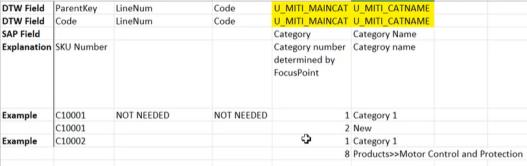
- This tab will determine which category or products falls into
- We only need the ParentKey, U_MITI_MAINCAT, and U_MITI_CATNAME filled out.
- ParentKey – this is the SKU number
- U_MITI_MAINCAT this is the category number which is determined by FocusPoint
- U_MITI_CATNAME this is the category name
- You can enter multiple categories in the same upload. For example, a product may be in both NEW and as well as Category1. You would enter these on separate lines.
4. COMPLETING 03 - RELATED ITEMS
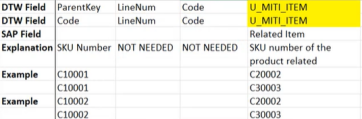
- For this tab, you will fill out any related items.
- We only need the ParentKey and U_MITI_ITEM filled out on this tab.
- ParentKey – this is the SKU number
- U_MITI_ITEM – this is the SKU number of the related product
- You can enter multiple related items in the same upload. You would enter these on separate lines.
5. COMPLETING 04 - PRODUCT ATTRIBUTES

-
* The attributes need to be setup in the options table in SAP before filling uploading this DTW- For this DTW you need to fill out the below;
- ParentKey – this is the SKU number
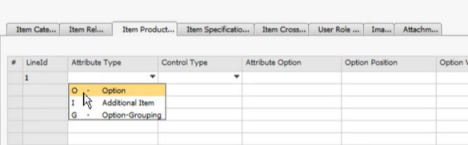
- U_MITI_ATRTYPE – this is predefined in SAP
- This can be checked in SAP in the FPItemConfig
- The options for the attribute type are
- O (option)
- I (additional item)
- G (option-grouping)
- For this DTW you need to fill out the below;
-
  *       *   U\_MITI\_ATRCONT – this is predefined in SAP
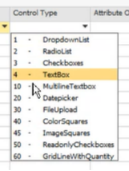
      *   The options for the control type are shown below:
-
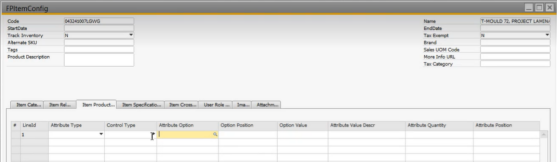
* * U\_MITI\_ATROPT – this is predefined in the SAP table. An Attribute Option has to be defined in the SAP FPItemConfig table before the DTW is uploaded
-
  *       *       *   U\_MITI\_ATROPTVAL – This is not predefined, and just as it is in SAP, this field can be filled in with your attribute.
      *   U\_MITI\_ATROPT\_DESC - This is not predefined, and just as it is in SAP, this field can be filled in with your attribute description.
      *   U\_MITI\_ATRQTY – This is your attribute Quantity.  For this you must enter the quantity of the attribute.
      *   U\_MITI\_ATROPT\_POS – This is the attribute position. Here you indicate where in the list you would like the attribute to be.
          *   For example, if you want red to come before blue in the drop down, you would put red as 1 and blue as 2.
6. COMPLETING 05 – SPECIFICATIONS
-
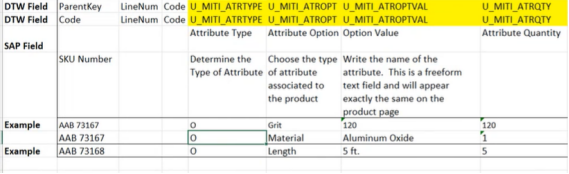
  *   For this tab you need to fill out any specifications
  *   ParentKey – this is the SKU number
  *   U\_MITI\_ATRTYPE – this is predefined in SAP
      *   This can be checked in SAP in the FPItemConfig
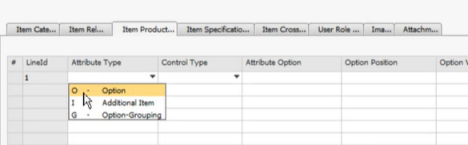
      *   The options for the attribute type are
          *   O (option)
          *   I (additional item)
          *   G (option-grouping)
-
* * U\_MITI\_ATROPT – this is predefined in the SAP table. An Attribute Option has to be defined in the SAP FPItemConfig table before the DTW is uploaded
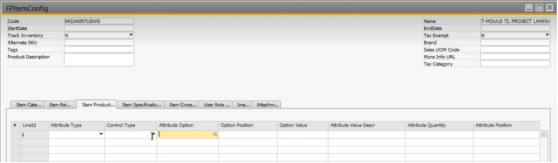
-
  *       *   U\_MITI\_ATROPTVAL – This is not predefined, and just as it is in SAP, this field can be filled in with your attribute.
  *   U\_MITI\_ATRQTY – This is your attribute Quantity.  For this you must enter the quantity of the attribute.
7. COMPLETING 06 – CROSS SELL
-
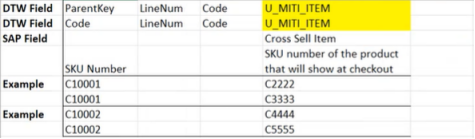
* For this tab you need to fill out any cross sell items- We only need the product sku as well as the cross sell item product sku
- ParentKey – this is the SKU number
- U_MITI_ITEM – this is the sku number of the cross sell item shown at checkout
- We only need the product sku as well as the cross sell item product sku
-
* You can enter multiple related items in the same upload. You would enter these on separate lines.
8. COMPLETING 07 – USER ROLES
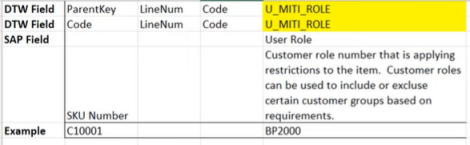
- For this tab you need to fill out any user roles
- You can list out any restrictions, for example certain roles can only see certain items
- We only need the product sku as well as the user role filled out on this sheet
- ParentKey – this is the SKU number
- U_MITI_ROLE – this is the customer role
9. COMPLETING 08 – IMAGES
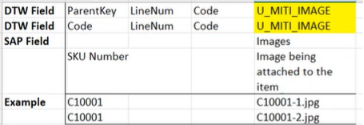
- For this tab you need to specify any images coming from SAP for your products
- We only need the product sku as well as the image name filled out on this sheet
- ParentKey – this is the SKU number
- U_MITI_IMAGE – this is the image name
-
* The image name needs to be saved as the sku #- If you have more than one image for your product, you would save these accordingly.
- sku# - 1.jpg
- sku# - 2.jpg
- If you have more than one image for your product, you would save these accordingly.
- Each image needs to be on its own line of the DTW sheet
- These are case sensitive
-
10. COMPLETING 09 – ATTACHMENTS

-
* For this tab you need to specify any attachments coming from SAP for your products- We only need the product sku as well as the attachment path and attachment description filled out on this sheet
- ParentKey – this is the SKU number
- U_MITI_ATTACH – this is the attachment path
- These attachments need to be saved in a shared folder that the FI team has access to
- U_MITI_ATTACH_DESC – this is the attachment description
- We only need the product sku as well as the attachment path and attachment description filled out on this sheet
11. WHERE TO UPLOAD YOUR DTW
-
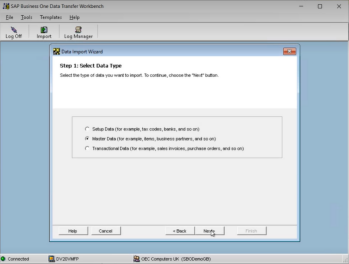
* Import > Master Data > Next
-
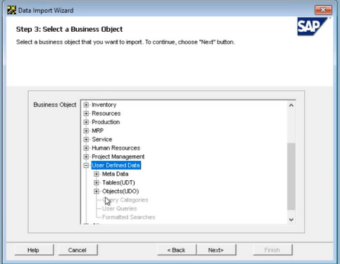
* User Defined Data > Objects (UDO) > UDO\_MITI\_ITMCONF > Next
-
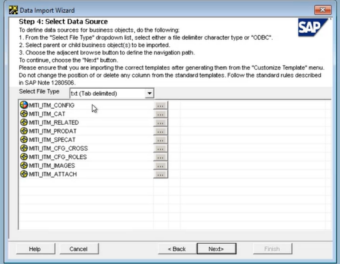
* Each DTW sheet is listed here
12. ADDITIONAL DTW TEMPLATES
- · We have additional DTW templates listed below. These can be used if you have too many values to enter manually
- UDT tax category
- UDT stores
- UDT specification attributes
- This is used to define the attributes in the FPItemConfig table
- UDT shipping Types
- UDT product attributes
- This is used to define the attributes in the FPItemConfig table
- UDT payment types
- UDT item update
- UDT inventory tracking
- UDT FP tax types
- UDT FP def warehouse
- UDT customer roles
Was this article helpful?
That’s Great!
Thank you for your feedback
Sorry! We couldn't be helpful
Thank you for your feedback
Feedback sent
We appreciate your effort and will try to fix the article