Overview
This guide covers how to install and deploy the FocusPoint Integration Worker Service on a production server. The worker service takes over SAP Quartz job processing from the web application, allowing the web app to focus on serving the portal while the worker handles all inbound SAP integration tasks.
Prerequisites
- Access to the production server (e.g., PR18 — 10.0.0.5)
- Latest master build deployed to the web application
- Latest PPM build available at
E:\PPMLastBuild - Latest Integration Worker build at
E:\IntegrationWorkerService_Latest_Build - Administrator access (required for Windows Service installation)
Step 1 — Update the Web Application
Deploy the latest master branch to the web application site on the production server. The site root is located at 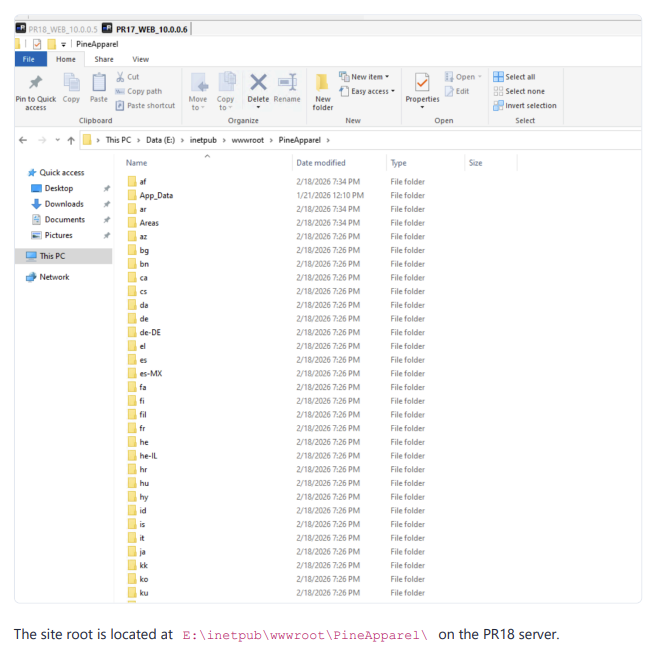
E:\inetpub\wwwroot\PineApparel\ on the PR18 server.
Step 1.1 — Disable SAP Jobs on the Web App
Open App_Data/appsettings.json in the web application and set EnableSapJobs to false:
"SapIntegration": {
"EnableSapJobs": false
},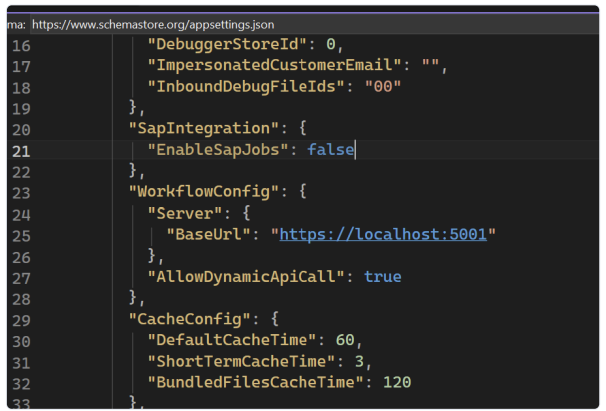 ⚠️ Important: When
 EnableSapJobs is false, the web app will NOT run any SAP Quartz jobs. The worker service takes over this responsibility entirely.
Step 2 — Update PPM (Processor Module)
Navigate to the production server (PR18) and replace the existing PPM folder contents with the latest build from E:\PPMLastBuild.
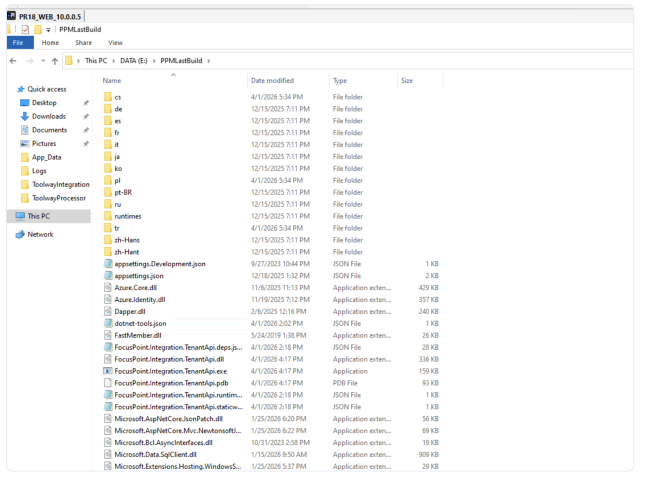
The PPM contains the FocusPoint.Integration.TenantApi application which handles inbound SAP XML messages and routes them to the correct tenant database.
Step 3 — Install the Integration Worker Service
Step 3.1 — Create the Worker Folder
On the production server, create a new folder under E:\Integration\ using the company name as a suffix:
E:\Integration\CompanyNameIntegrationCopy all files from E:\IntegrationWorkerService_Latest_Build into this new folder. 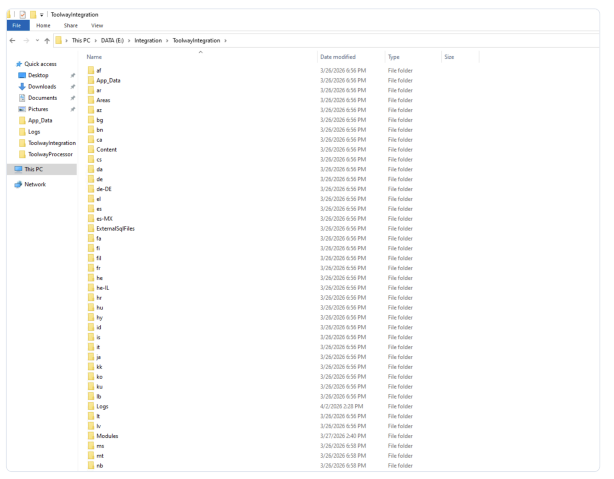 The folder includes
 App_Data, Logs, Modules, and the worker executable with all dependencies.
Step 3.2 — Configure appsettings.json
Open App_Data/appsettings.json inside the new folder and update the configuration. Use an existing installation as a reference:
E:\Integration\ToolwayIntegration\App_Data\appsettings.json| Setting | Description |
|---|---|
DataConfig.ConnectionString | SQL Server connection string for the tenant database |
SchedulerSettings.NodeName | Unique node name (e.g., IntegrationWorkerCompanyName) |
HealthCheck.Port | Health check port (default: 5100, increment for each additional worker) |
Step 3.3 — Install as a Windows Service
Open PowerShell as Administrator, navigate to the worker folder, and run the deploy script:
cd E:\Integration\CompanyNameIntegration
.\deploy-worker.ps1
The script reads the NodeName from appsettings.json and automatically publishes the application, creates the Windows Service, configures automatic restart on failure, and starts the service.
Step 3.4 — Verify the Service is Running
Open Task Manager → Services tab and confirm the new service appears and is running.
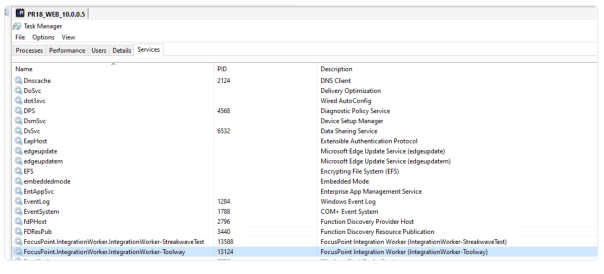 The service is listed as
 FocusPoint.IntegrationWorker.IntegrationWorker-<CompanyName> with an active PID. For example:
- IntegrationWorker-StreakwaveTest (PID 13588)
- IntegrationWorker-Toolway (PID 13124)
Step 4 — Configure SLSync Portal
Go to the SLSync Portal and update the ClientURL under Settings. The URL format is:
https://<processor-domain>/Api/SendXMLV4/<DbId>/<ApiKey>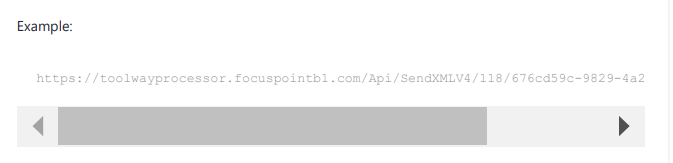 Each PPM instance has its own URL.
Step 4.1 — Find DbId and API Key
The URL parameters come from the FpTenants database:
| URL Segment | Source |
|---|---|
DbId (number after SendXMLV4/) | 10.0.0.8/FpTenants/Connection table → DbId column |
ApiKey (GUID at the end) | 10.0.0.8/FpTenants/Connection table → SapDatabase column |
Replace both values in the ClientURL accordingly.
Step 5 — Done
The Integration Worker Service is now installed and connected. SAP inbound messages will be processed by the worker service instead of the web application.
Verification Checklist
- ☐ Web app
appsettings.jsonhasEnableSapJobs: false - ☐ PPM is updated with the latest build
- ☐ Worker service folder is created with correct
appsettings.json - ☐ Windows Service is installed and running (visible in Task Manager)
- ☐ SLSync Portal ClientURL is configured with correct DbId and API Key
- ☐ Worker health endpoint responds:
http://<server>:<port>/health
Was this article helpful?
That’s Great!
Thank you for your feedback
Sorry! We couldn't be helpful
Thank you for your feedback
Feedback sent
We appreciate your effort and will try to fix the article