Banners are the large images and sliders across the top of your home page. They can be a simple picture or a clickable image that links to a page. There are two ways to add them: a quick way that covers most cases, and a full-control way for when you want multiple slides, effects, or timing.
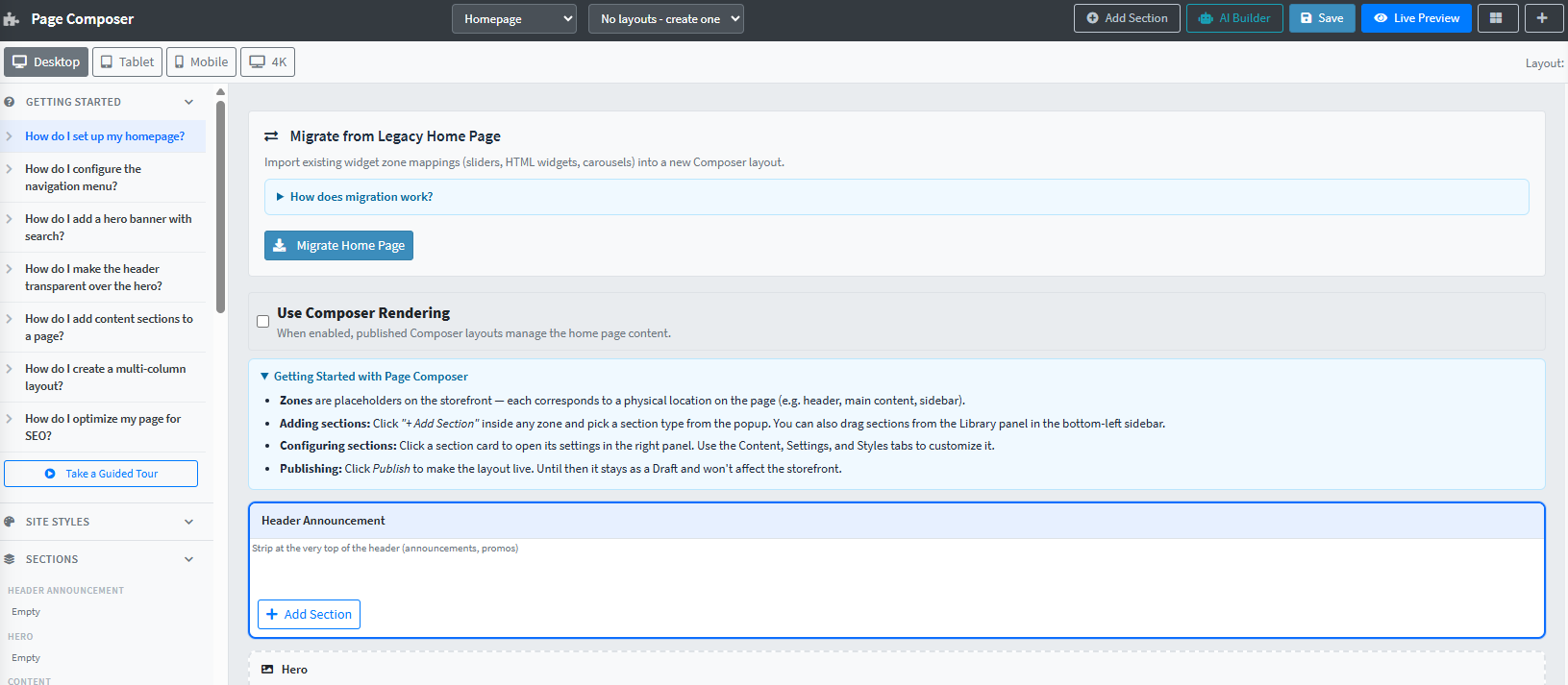
The quick way: Page Composer
For most home page banners, open Content, then Page Composer. From there you can add or replace a banner image, set where it links, and see your change in place. This is the easiest option when you just need to swap or add a single hero image.
The full-control way: Anywhere Sliders
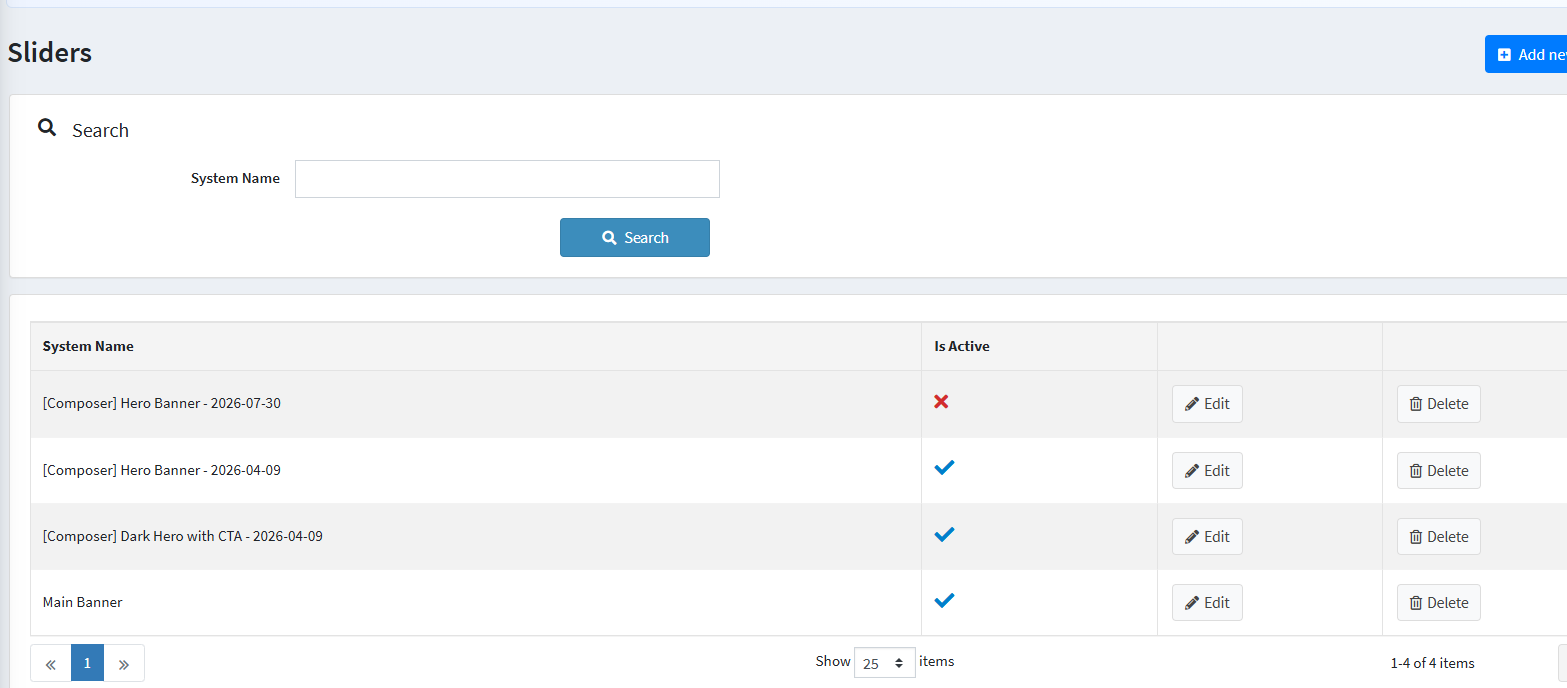
When you want more than one slide, transition effects, timing, or a separate mobile image, use Anywhere Sliders. Open Advanced Visuals, then Plugins, then Anywhere Sliders, then Manage Sliders.
You will have a default Main Banner listed under System Name. Click Edit, then open Slides and click Edit again to add your image.
- Desktop picture: suggested size 2000px wide by 500px high.
- Mobile picture: suggested size 500px wide by 500px high. If you leave this empty, your desktop picture is used on mobile.
- Link URL: enter a page address if you want the banner to be clickable.
After you load your picture, click Save. You can create as many sliders as you like and place more than one on a page, and each works independently from the others. Your banner displays at the proportions of the image you upload, so size it to the suggested dimensions for the best fit.
Good to know
- Promotional messages. For a promo popup rather than a hero image, use the Popup Manager instead of a slider.
- Your overall look is set by your theme, not by banners. Colors, fonts, and spacing across your site come from your theme settings (your Nexus design tokens, which can be seeded from your Figma file), not from individual banners. If your brand colors need to change site-wide, that is a theme change. See the Nexus theme article or ask your FocusPoint contact.
Video walkthrough
Was this article helpful?
That’s Great!
Thank you for your feedback
Sorry! We couldn't be helpful
Thank you for your feedback
Feedback sent
We appreciate your effort and will try to fix the article